
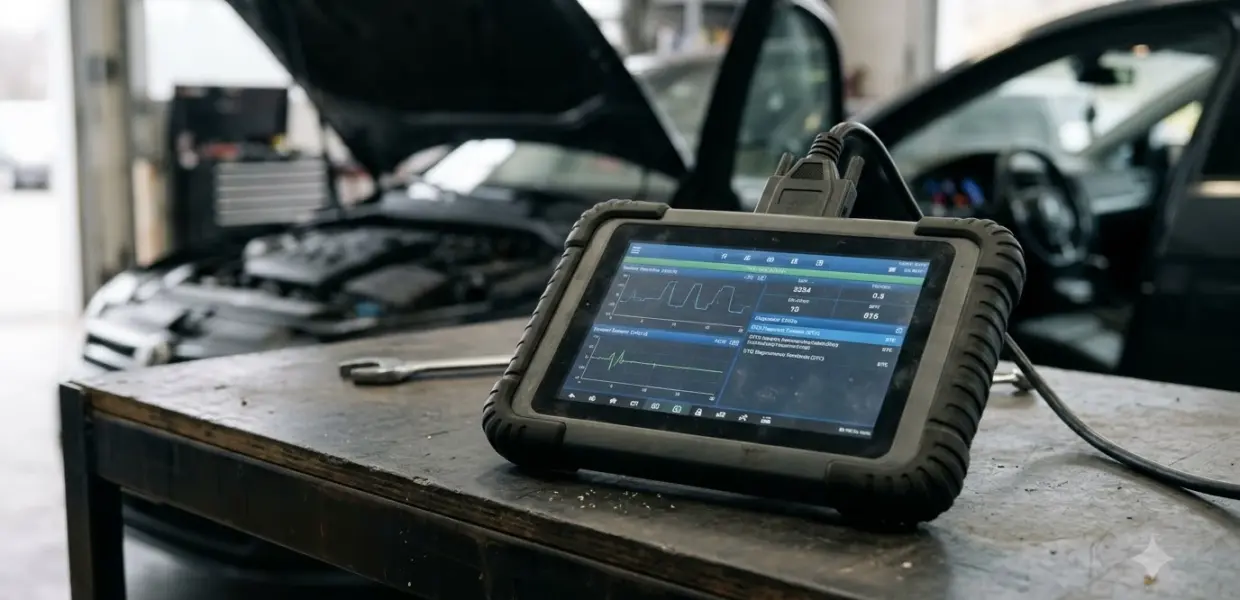

Here is how to use Autel MaxiCOM MK808 in five steps: charge the tablet, connect the cable, power on, check the link and open Diagnostics. Each step follows Autel’s own quick guide and its official MaxiCOM manual, so you can start a safe first scan.
Menu names can change between MK808 variants, so check your model name before you follow any menu path. The steps below are the ones the sources confirm. If you are still comparing tablet tools, see our guide to bidirectional scan tool options. A handheld professional scanner from another brand is covered in Foxwell NT680 Pro Quick Scan and VIN steps.
What you need before you start
Before you learn how to use Autel MaxiCOM MK808 on a car, you need a charged tablet or external power, an Autel ID, and the main cable with its 16-pin adapter. Set these up first so the first connection goes smoothly.
- A charged tablet, or the external power adapter connected to it.
- An Autel ID. The quick guide asks you to create one and register the device with its serial number (SN) and a password.
- The main cable with its 16-pin male adapter for the vehicle.
- A vehicle battery that is fully charged. Autel’s manual warns that a weak battery can generate false data.
Keep the equipment dry and clean, because good habits matter when you use the tablet on regular jobs. The manual says to keep test equipment free from oil, water and grease, and to clean the outside with a mild detergent on a clean cloth.
How to use Autel MaxiCOM MK808 on your vehicle
Plug the 16-pin adapter into the vehicle’s diagnostic port, connect the female adapter to the tablet, and tighten both sets of captive screws. The port, called the DLC, is usually under the dashboard. Getting this step right is the foundation of how to use Autel MaxiCOM MK808 safely.
- Connect the main cable’s 16-pin male adapter to the vehicle’s DLC.
- Tighten the captive screws on the vehicle adapter.
- Connect the main cable’s female adapter to the tablet and tighten its captive screws.
- Long press the Lock/Power button to turn on the tablet.
Once the cable is seated and the tablet is on, the quick guide says the tablet is ready for use as a diagnostic device.
The DLC is not always under the dashboard. According to Autel’s MK808Z-BT user manual, you should check the vehicle’s own user manual for the exact location.
| Connection | Range or setup | What the manual says |
|---|---|---|
| Bluetooth | About 33 feet (10 m) | Recommended first choice, with no repeated plugging and unplugging |
| Mini USB cable | Cable stays connected to both devices | A USB cable badge confirms the link |
The manual’s Bluetooth and cable options apply to its MaxiVCI Mini accessory. Check whether your kit includes that accessory before you follow these steps, because the connection options above may not apply to how to use Autel MaxiCOM MK808 on your model. Technicians who run a Snap-on SOLUS follow a similar connect-and-scan routine, shown in the Snap-on SOLUS connection and scan steps.
Starting your first diagnostic session
After power-on, slide the lock screen up to reach the MaxiCOM Job Menu, then tap Diagnostics to open the Vehicle Menu. Confirm the connection badge before you tap anything else. This is the usual starting point for how to use Autel MaxiCOM MK808 in a real job.
- Long press the Power/Lock button on the top-right side until the power LED turns green.
- Slide the lock screen up to open the MaxiCOM Job Menu.
- Look at the connection icon at the bottom-right corner. A BT or cable badge means the vehicle link is ready, while an X badge means it is not connected.
- Tap Diagnostics, then choose the vehicle manufacturer.
The Diagnostics application can retrieve ECU information, read and erase diagnostic trouble codes (DTCs), and view live data. Autel’s manual describes these as the main functions for how to use Autel MaxiCOM MK808 in diagnostics, so start with a code read before you clear anything. A handheld option for the same job is in Topdon ArtiDiag600S code reading steps.
The screen locks by default the first time you power on. Autel recommends locking it to protect stored data and save battery. The bottom navigation bar also has a Back button, a MaxiCOM Home button that returns to the Job Menu, and a Screenshot button that saves the displayed information.
Updating the software before the first scan
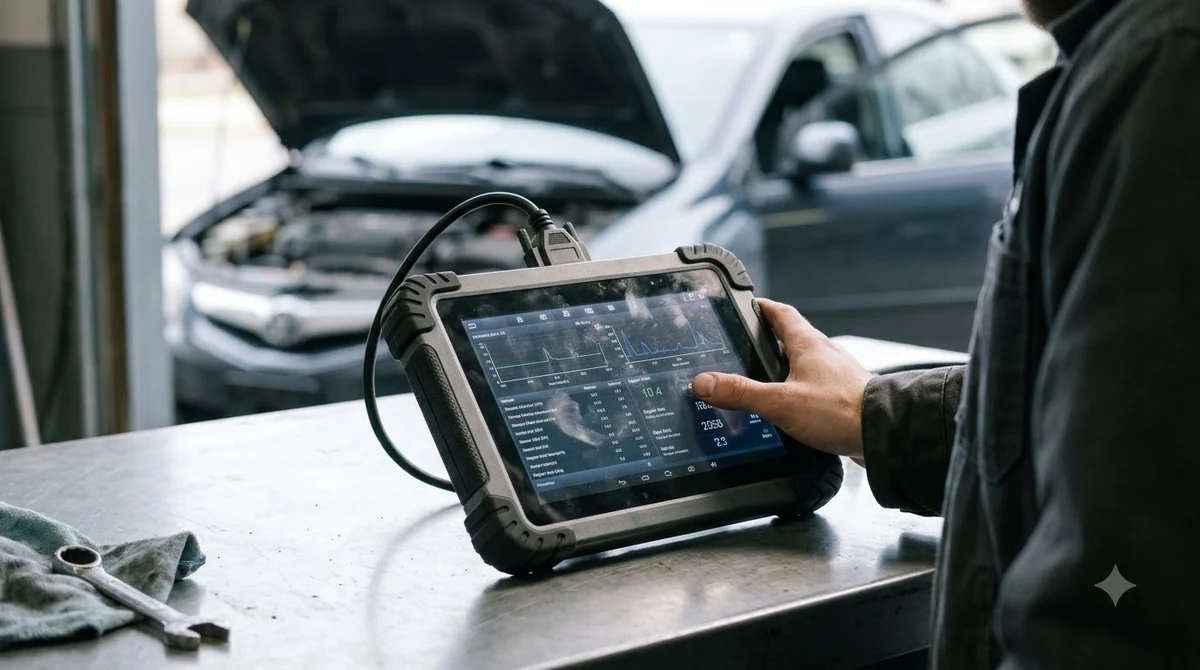
Update the software before your first job, which is the last setup step in how to use Autel MaxiCOM MK808, by tapping the Update button on the Diagnostics Job Menu while the tablet is online. Updates need a stable Internet connection and enough battery.
- Connect the tablet to the Internet and keep it charged or on external power.
- Tap the Update application button on the Diagnostics Job Menu.
- Tap Update All, or tap Update beside each item you want.
- Tap Pause to suspend an update, and Continue to resume it.
Once an update finishes, the software installs automatically and replaces the previous version. Plan updates for a time when you do not need the tablet for a job. For a broader comparison of tools, read our OBD2 scanner buying overview.
Printing a report to your computer
Printing is optional when you learn how to use Autel MaxiCOM MK808, but it helps you keep records. Printing from the tablet needs Maxi PC Suite on a computer that shares a network with the tablet. Autel’s quick guide says the tablet and computer must both connect to the same Wi-Fi or LAN network, and the computer must have a printer.
Download Maxi PC Suite from the Update Client section under Support and Updates on autel.com, then run the MaxiSys Printer on the computer and click Test Print. Tap Print on the tablet to send a document, and the printer prints it automatically when Auto Print is on.
Fixing a no-communication message
A no-communication message usually points to a power, cable or Bluetooth pairing problem, and Autel lists these checks first. Work through them in order before you try anything more complex. Most fixes for how to use Autel MaxiCOM MK808 start with these basic checks.
- Confirm the VCI is powered, with its Power LED solid green.
- Check the Connection LED. A solid light means the link is up but the vehicle is not responding, and a flashing light means it is communicating.
- For Bluetooth, confirm that the correct VCI is paired with the tablet.
- For a cable, reseat it at both ends.
- Stand closer to the VCI, because signal loss can interrupt a session.
If the Power LED flashes red, the manual says the VCI has a hardware problem and you should contact technical support. If a prompt appears after the checks, the vehicle may not support the system you chose, or a fuse may be blown.
Shutting down safely
Exit Diagnostics and end all vehicle communication before you power down. Autel warns that a forced shutdown during communication may cause ECU problems on some vehicles. Shutting down correctly is the final step of how to use Autel MaxiCOM MK808 on each job.
- Exit the Diagnostics application.
- Long press the Power/Lock button.
- Tap Power Off. The tablet turns off in a few seconds.
If the system crashes during how to use Autel MaxiCOM MK808, long press the Power/Lock button and tap Restart instead.
Frequently Asked Questions
Do I need an Autel ID to use the MaxiCOM MK808?
Autel’s quick guide tells you to create an Autel ID and register the device with its serial number and a password. Save those details somewhere safe, because you will need them to download software updates later on the tablet. The Autel ID is part of how to use Autel MaxiCOM MK808 from day one.
Where is the OBD2 port on a car?
The vehicle’s DLC is usually under the dashboard. Autel’s manual notes that it is not always there, so check the owner’s manual for the exact spot before you plug in the cable. Keep the connection clean and secure once it is in place. Knowing the port location is the first practical step in how to use Autel MaxiCOM MK808.
Why does my MK808 say there is no communication?
The most common causes are a loose connection, an unpowered VCI, or a Bluetooth pairing with the wrong device. Work through the checklist in the no-communication section first. If the Power LED flashes red, the manual says to contact technical support.
Can I print reports from the MK808?
Yes. Install Maxi PC Suite on a computer on the same network as the tablet, then tap Print on the tablet. The quick guide also mentions a Wi-Fi printer app for the tablet if you have a compatible Wi-Fi printer.
Does this guide cover every MK808 model?
No. Menus, accessories and cables differ between MK808 variants. The steps here combine Autel’s MK808 quick guide with the MaxiCOM MK808Z-BT user manual, so check your model name and included parts before you follow any menu path. Confirm the model first, because how to use Autel MaxiCOM MK808 depends on the accessories you own.
After you learn how to use Autel MaxiCOM MK808, run one short test on a vehicle you know well. That confirms the cable, power and software all work together, and it shows you where your screen differs from this guide. When a step does not match, follow the manual for your exact model.