
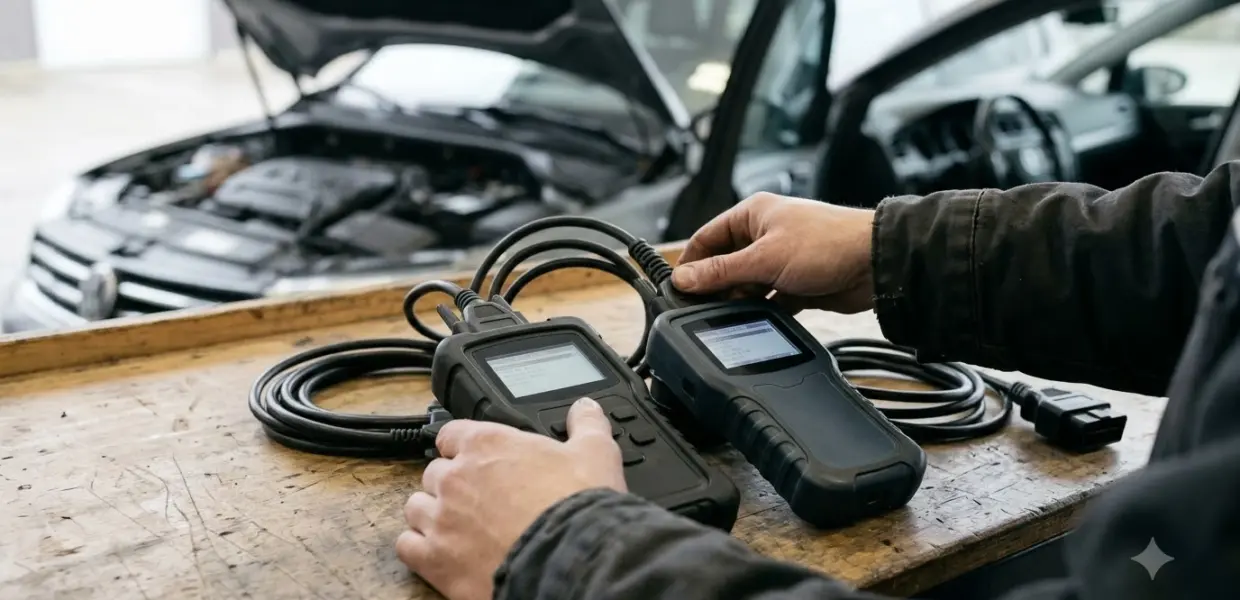

How to use Ford IDS starts with installing the software from its VCM kit, connecting the interface to the vehicle, and opening a session. IDS is Ford’s dealer-level diagnostic software, so you need a VCM, a Windows PC and a current subscription before you begin.
Your setup depends on your equipment and user rights, so check those first. The Ford guides used here are dated 2008 to 2012, so confirm the current version before you start.
What Ford IDS Is and What It Needs
Ford IDS, short for Integrated Diagnostic Software, runs on a Windows laptop and works through a Vehicle Communication Module (VCM), according to Ford’s own documentation. The VCM is the part that talks to the car, while the software shows the tests and results. Before you learn how to use Ford IDS, it helps to know which part does what.
Ford’s FAQ says IDS ships on DVD with calibration files and can also be downloaded from the PTS website. It also says no additional software is needed with a current VCM subscription. Ford owners who want a consumer-level option can read FORScan connection and code reading, and a Toyota dealer-level equivalent is in Techstream subscription and setup.

The FAQ does not say who qualifies for access, and it does not state a login rule. Treat access as something to confirm with your dealer or Ford contact before you buy any hardware.
Hardware You Need Before You Start
You need a VCM, a 16-pin cable and a Windows PC for IDS, and a VMM only for tests that use measurement tools, according to Ford’s Quick Start Guide. The table below lists each part and its job.
| Part | Role | Needed for |
|---|---|---|
| VCM | Connects to the vehicle through the 16-pin DLC cable | Link-based tests and module programming |
| VMM | Measurement module connected to the laptop | Fuel system, oscilloscope, multimeter and ignition tests |
| H-406 cable | Ethernet-USB host cable from VCM or VMM to laptop | Every laptop connection; the kit includes two |
| Windows PC | Runs IDS under an Administrator account | Installation and every session |
Knowing how to use Ford IDS also means knowing which cable goes where. The VCM and VMM both use the H-406 cable, so the two cables in the IDS kit cover both modules. Ford’s FAQ also lists a VCM to Laptop Cable Kit, part number 164-R9503, sold through Rotunda. The FAQ adds that a VMM cannot be used with a Pocket PC, and that Ford recommends one VMM for each existing WDS, based on shop needs. GM’s counterpart interface is covered in a separate guide to the GM MDI 2 interface setup.
How to Use Ford IDS Step by Step
Learning how to use Ford IDS is mostly about following setup in order. Setup follows a fixed order: install IDS from the VCM DVD, install the calibration files, boot the VCM, then start IDS and open a session. Ford’s IDS VCM Quick Start Guide sets out the order below.
- Insert the VCM DVD. If the install screen does not appear within 10 seconds, open the DVD drive and run dpselect.exe.
- Select the IDS icon on the dash panel, install IDS, then return to the dash panel.
- Select the Calibration icon on the dash panel and install the calibration files.
- Connect the VCM to the vehicle with the 16-pin DLC cable, connect it to the laptop with the H-406 cable, and boot the VCM.
- Double-click the IDS icon on the desktop to start the program.
- Start a new session or open a previous one. Select the vehicle icon for automatic vehicle ID, or choose Manual Vehicle Entry from its menu.
Connect the VMM only when a test needs measurement tools, and follow the hook-up screens that IDS displays. Before setup, confirm that your Windows account has Administrator privileges, because the Quick Start says all IDS users must have them.
Internet activation is a separate step. The Quick Start points to an IDS Activation Guide in the IDS kit, which covers the connection setup. This article does not cover those steps, so check the kit copy for the exact steps.
Running a Diagnostic Session
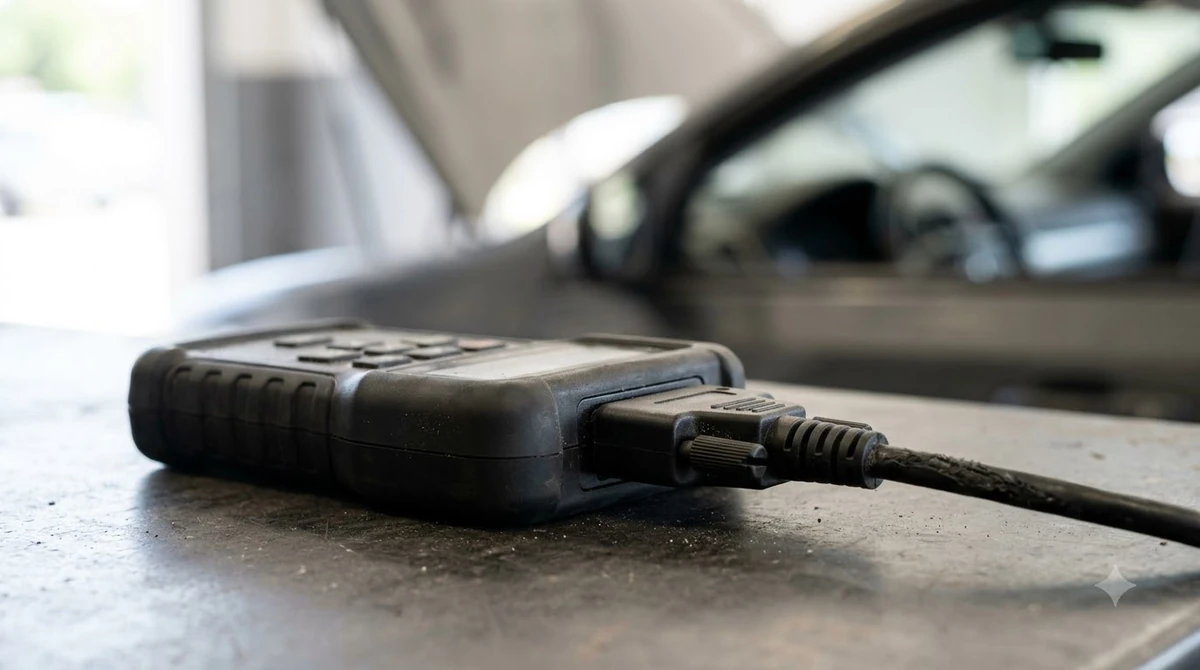
The VCM runs link-based tests such as Datalogger, SelfTest and reading CMDTCs, while the VMM handles tests that need measurement tools. Most link-based work in Ford IDS needs only the VCM and the vehicle connection. Once you know how to use Ford IDS for link tests, add the VMM only for measurement work.
- VCM link-based tests: Datalogger, SelfTest, reading CMDTCs, Program Modules, Power Balance and several service functions.
- VMM measurement tests: Fuel System Test, Oscilloscope, Digital Multi-meter and Ignition System Test.
- Hook-up screens: IDS shows the extra cables each measurement test needs, as the test comes up.
Ford’s guide says the battery cables go to the vehicle battery when a measurement test calls for them. Follow the on-screen order rather than connecting everything at the start of a session. Because the VCM covers most link-based work, you can finish a basic scan before you set up any measurement hardware. Owners of the full-size truck can start with what the F-150 check engine light means before pulling codes.
Fixing Connection Problems
Most connection failures come from VCM firmware older than NGS+ V24.3, a running Diagnostic Base Station, or two VCMs on one PC, according to Ford’s IDS Troubleshooting Guide. Check these causes in this order when you troubleshoot how to use Ford IDS.
- Firmware: the guide says an NGS+ VCM must run V24.3 or newer, and the Diagnostic Base Station can update it.
- Diagnostic Base Station: exit it, exit IDS, unplug VCM power, then restart IDS and try again.
- Two modules: connect only one VCM to the IDS PC at a time. A VCM and a VMM together work.
- Network settings: the guide covers the LAN adapter, its IP address and TCP/IP filtering for the VCM connection.
The same network checks apply to the VMM. If the VMM cannot connect or cannot be updated, the guide says to disable and re-enable its local area connection, then confirm the adapter has a valid IP address.
If you are still learning how to use Ford IDS, check security software early, because it can also block IDS. A third-party firewall asks you to allow each IDS program when it first runs, and the guide lists the executables that need exceptions. Allow them only after you confirm the request comes from IDS. The guide also says the firewall must finish starting before IDS is launched after a reboot.
Operating System, Firewall and User Rules
Ford’s FAQ lists Windows XP Professional as the only officially supported operating system and approves Windows 7 Professional 32-bit. The FAQ page carries no date, so treat these statuses as historical.
| Operating system | Status in Ford’s FAQ |
|---|---|
| Windows XP Professional | Only officially supported OS on that page |
| Windows 7 Professional 32-bit | Approved |
| Windows 7 Professional 64-bit | Being investigated |
| Windows Vista | Support suspended |
- Ford does not validate other applications on IDS laptops, so uninstall any program that interferes.
- The Diagnostic Base Station must not be installed on an IDS laptop.
- A System Restore requires you to uninstall and reinstall IDS.
- Ford recommends a high-speed wireless connection for updates, flash files and service information.
- Apply VCM PROM updates when IDS prompts for them.
Limits of These Guides
Use this article as background on how to use Ford IDS, not as a current manual for how to use Ford IDS on a new model. The Ford sources here date from 2008 to 2012 and do not list supported vehicles or model years, so they cannot confirm coverage for a newer car. Ford’s FAQ says IDS will support future vehicle content, but it names no vehicles. If the warning on your Ford pickup is the SRS light, our Ford F150 airbag light explainer covers the driver-side checks.
Because the Quick Start and troubleshooting guide are old, the steps for a current model may differ from what is written here. IDS is a dealer-level tool, so an owner who only wants to read basic codes should compare that need with a consumer OBD2 scanner first. For basic code reading, see our guide to a basic home code reader.
Frequently Asked Questions
Can I use Ford IDS without a VCM?
Ford’s guides describe IDS working through a VCM connected to the vehicle, so the software alone does not connect to a car. The VCM handles the link-based tests, and the VMM adds measurement tools for specific tests.
Does IDS need administrator rights?
Yes. Ford’s Quick Start says all IDS users must have Administrator privileges, and it gives Windows steps to create an administrator account or make an existing user an administrator.
Which Windows versions work with IDS?
Ford’s FAQ lists Windows XP Professional as the only officially supported OS and approves Windows 7 Professional 32-bit. Windows 7 64-bit was still under investigation on that page, and the page does not address other versions.
Is a subscription required?
Ford’s FAQ says IDS needs a current VCM subscription. The Ford pages read for this article do not state a price, so check the current cost with Ford or your dealer before you buy the kit.
Why does the VCM fail to connect?
Check that the VCM runs NGS+ V24.3 or newer, that Diagnostic Base Station is closed, and that only one VCM is plugged into the PC. The troubleshooting guide also covers LAN adapter settings and firewall exceptions.
Before you buy hardware or start a session, check Ford’s current documentation. These guides date from 2008 to 2012 and do not confirm coverage for newer vehicles, so the current manual is the safer source for any specific model.