
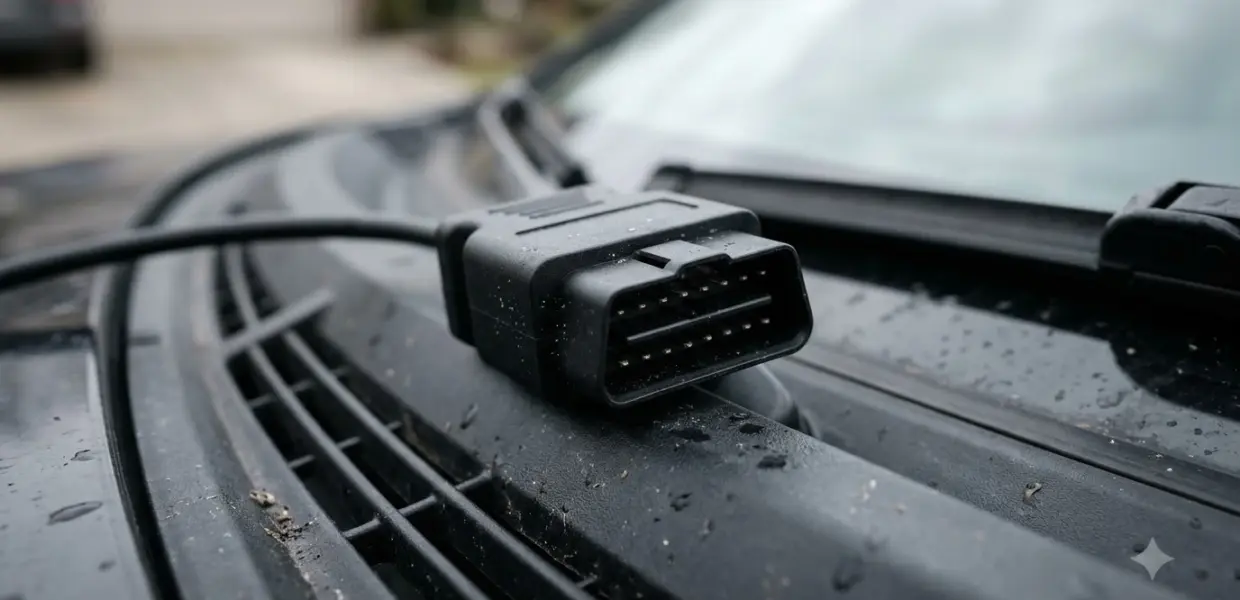

Learning how to use vgate icar pro comes down to three steps: plug it into the OBD2 port, pair it or connect it inside your scan app, then run a scan. The steps differ slightly between the original iCar Pro and the newer iCar Pro 2S, so check the label first.
The 2S model uses a Bluetooth name and a pairing code that are different from the older units. Match each step below to your device, and you will be reading codes in a few minutes. Most setup mistakes come from skipping the model check, so do that first when you learn how to use vgate icar pro.
Know Which iCar Pro You Have
The VGATE iCar Pro 2S is a Bluetooth 5.2 product, and the vendor says it adds automatic wake-up for electric vehicles. The same name is used on several other units, including Bluetooth 4.0 and Wi-Fi versions, and the setup steps are not the same for all of them. The official VGATE product page for the iCar Pro 2S lists the model details.
Before you start, look for the model name printed on the adapter or the box. Use these steps only if the label says iCar Pro 2S:
- Bluetooth version: 5.2 for the 2S model.
- Electric vehicle support: the 2S adds automatic wake-up for electric vehicles.
- Other iCar Pro models may need the app or Bluetooth steps in the manual that came with them.
If this is your first adapter, start with the model label and the box, then read the manual that came with it. The manual is the main reference for how to use vgate icar pro on your specific unit, and the vendor asks buyers to download the latest version.
If your label does not match, the pairing names below will not apply. Check the model on the box before you spend time on Bluetooth settings.
Plug In the Adapter
Every setup of how to use vgate icar pro starts with a clean, powered port. Plug the adapter into the car’s OBD2 port, which is usually under the dashboard. The port powers the adapter, so the device will not work if the port has no power. Turn the ignition on before you start pairing, but do not start the engine until the scan app is ready.
- Find the 16-pin OBD2 port under the dashboard and check that it is clean and dry.
- Push the iCar Pro firmly into the port until it seats.
- Turn the ignition on, without starting the engine.
- Wait a few seconds for the adapter to power up, then move on to pairing.
If you use an OBD2 splitter while you learn how to use vgate icar pro, connect the splitter to the port first and then plug the iCar Pro into the splitter. A loose splitter can cause the connection to drop during a scan, so push each connection in fully.
How to Use Vgate iCar Pro With an Android Phone
On an Android phone, the vendor’s steps for how to use vgate icar pro with the 2S model use the Bluetooth name Android-Vlink and the pairing code 1234. Pair the adapter in your phone’s Bluetooth settings, then open the scan app and select it as the connection.
- Turn on Bluetooth on your Android phone.
- Search for the device named Android-Vlink and select it.
- Enter the pairing code 1234 when the phone asks for it.
- Open your scan app and choose the adapter in its connection settings.
The vendor also lists the same name and code for Windows. If the phone does not connect, check that Bluetooth is on and that the adapter appears as paired in the phone’s Bluetooth list. Remove the pairing, then pair it again if the connection still fails.
Connect From an iPhone
On an iPhone, how to use vgate icar pro differs from Android, because the vendor says the 2S needs no Bluetooth pairing in the phone’s settings. Open the scan app and set up the connection from inside the app instead. This is a different path from Android, and mixing the two can leave the adapter stuck in a half-paired state.
- Leave the iPhone Bluetooth list alone for the iCar Pro 2S.
- Open your scan app and go to its connection or adapter settings.
- Select the iCar Pro from the app’s list and wait for the connection to show as active.
If the app does not show the adapter, close it, confirm the ignition is on, and try again. Connecting from inside the app is the method the vendor describes for iOS, and it is the core of how to use vgate icar pro on an iPhone, so do not depend on a phone-level pairing for this model.
Run Your First Scan
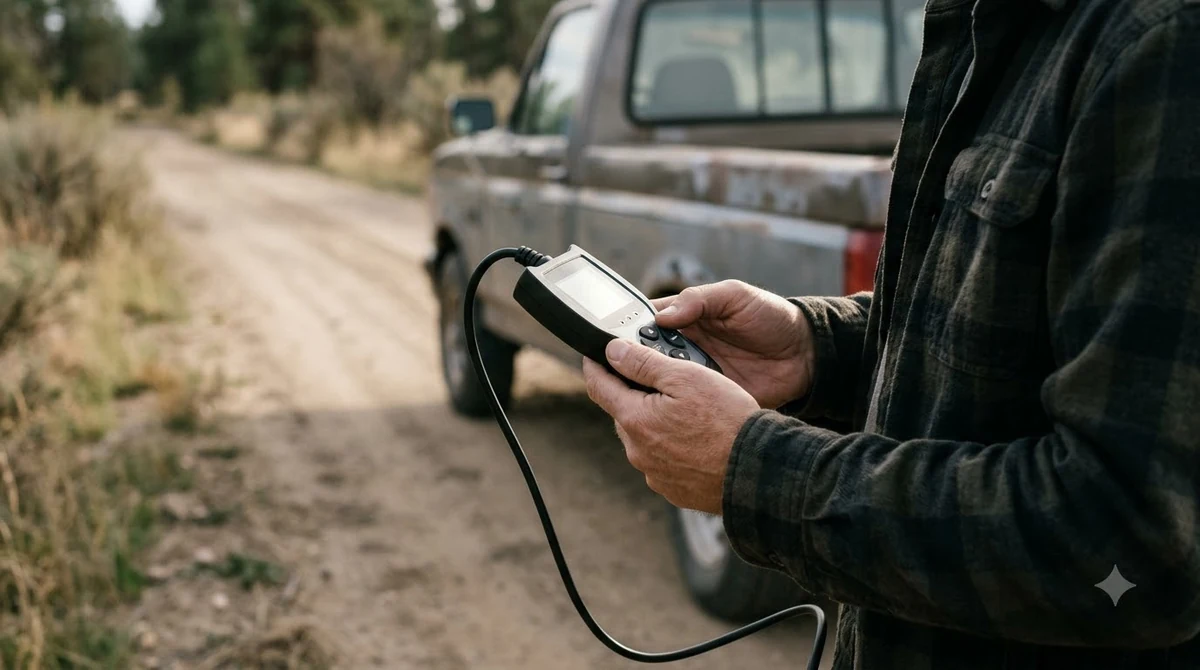
Once the adapter is connected, this is where how to use vgate icar pro pays off. Park on level ground with the parking brake on, and keep hands and loose clothing clear of the engine bay before any live check. Then open a scan app such as Car Scanner, which the vendor uses in its setup example, and read the stored codes. A code is only a starting point, so write each one down before you change anything in the car.
- Open the scan app and confirm the adapter shows as connected.
- Choose the option to read codes, then wait for the scan to finish.
- Write down each code and its short description.
- Look up each code before you clear it, because the light returns if the fault is still present.
Scan apps differ in their menus, so the labels for how to use vgate icar pro in your app may not match these steps exactly. Check that the app supports the adapter model you bought, since the vendor’s page does not list every compatible app. To compare other adapters, see these Bluetooth OBD2 scanners for phones.
Keep Firmware Current and Get Support
The vendor’s product page lists free firmware updates for the iCar Pro 2S and says it supports online firmware updates. It also states that pirated products cannot be upgraded, so buy from an authorized seller if you want updates to work. Once the adapter connects, choosing an OBD2 app for your phone helps you pick the software to run on it.
- Download the latest user manual from the vendor before you pair the device, because the manual sets out how to use vgate icar pro for your firmware version.
- Check for firmware updates after a long gap in use.
- Contact the vendor’s support team if an update does not install or the device will not connect.
Firmware matters for compatibility, but it cannot fix a fault in the car, so updates are part of how to use vgate icar pro well, not a repair. If the same code returns after you cleared it, the cause still needs a repair, not another scan.
Related Guides
Frequently Asked Questions
Do I need to pair the iCar Pro on an iPhone?
For the iCar Pro 2S, the vendor says no Bluetooth pairing is needed in the phone’s settings. Open the scan app and set up the connection from inside the app.
What pairing code does the iCar Pro 2S use?
The vendor’s setup steps use the Bluetooth name Android-Vlink and the pairing code 1234 for Android and Windows. Confirm the name on your device before you enter the code.
Is it hard to learn how to use vgate icar pro?
No. For the 2S model the setup is short: power the adapter from the OBD2 port, connect it through Bluetooth or the app, then run a scan. Most delays come from the wrong pairing method for the phone.
Is the firmware update free?
The vendor lists free firmware updates and online updates for the iCar Pro 2S. It also says pirated products cannot be upgraded, so the update path depends on buying a genuine unit.
Can I use any scan app with the iCar Pro?
The vendor’s setup example uses Car Scanner, and its page does not name a full list of compatible apps. Check your app’s list of supported adapters before you buy a subscription or start a scan.
Why will the adapter not connect?
The most common causes are Bluetooth switched off, the ignition off, or an old pairing still stored on the phone. Turn the ignition on, remove the old pairing, and pair again using the steps for your phone.
Check the model label first, then use the pairing steps that match your phone, since that is how to use vgate icar pro without guesswork. Write down every code before you clear it, so the next step is a repair plan.