
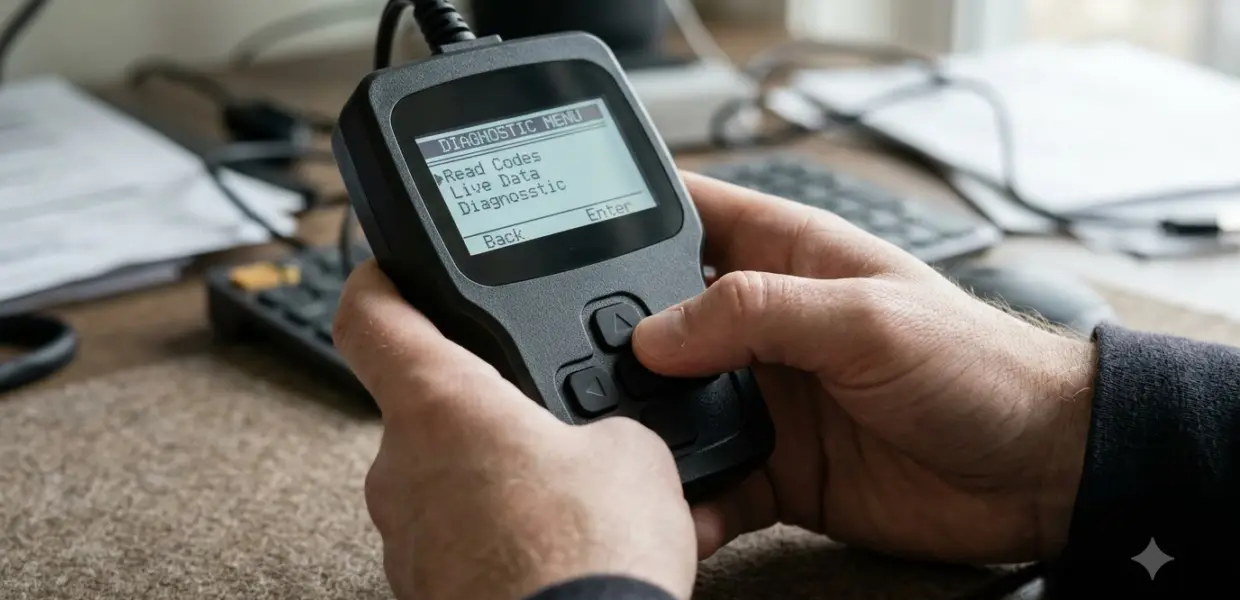

Learning how to use Konnwei KW310 takes only a few steps: plug the cable into the 16-pin port, turn the ignition on, then open Diagnostics from the Main Menu. The handheld reads and clears OBD II trouble codes.
The steps below follow the KW310 manual text for how to use Konnwei KW310 on a typical OBD II car. Check every code before you erase anything, because erasing also clears freeze frame data and resets the readiness monitors.
What the Konnwei KW310 Does
The Konnwei KW310 is a handheld OBD II scanner that reads and clears engine fault codes, shows live sensor data and checks I/M readiness. Knowing how to use Konnwei KW310 starts with its fit: it is built for OBD II compliant vehicles, including those that use the CAN protocol.
Before you learn how to use Konnwei KW310, check the power and heat limits. According to the manual text, the unit draws 8.0 to 18.0 V from the vehicle battery and works between 0 and 60°C (32 to 140°F). Storage range is -20 to 70°C (-4 to 158°F).
The manual copy used for this guide is a third-party reshare, so check the manual packed with your unit before you rely on a detail. One comparison review says the KW310 cannot test SRS or ABS systems, so do not expect airbag or brake data from it. Our guide to low-cost handheld code readers compares similar tools.
Safety Checks Before You Start
Never connect or disconnect the KW310 with the ignition on or the engine running. Follow these basics before you learn how to use Konnwei KW310 on any car.
- Wear ANSI-rated eye protection and keep hands, clothing and tools clear of moving or hot engine parts.
- Work in a well-ventilated area, because exhaust gases are poisonous.
- Block the drive wheels, put an automatic in PARK or a manual in NEUTRAL, and set the parking brake.
- Stay clear of the ignition coil, distributor cap, ignition wires and spark plugs, which carry high voltage when the engine runs.
- Keep the tool dry and free of oil, water and grease.
Never leave the vehicle unattended while a test is running, even during a quick how to use Konnwei KW310 session.
How to Use Konnwei KW310: Connecting and Navigating
To connect the KW310, turn the ignition off, plug the cable into the 16-pin Data Link Connector, then turn the ignition on. The engine can be off or running at that point.
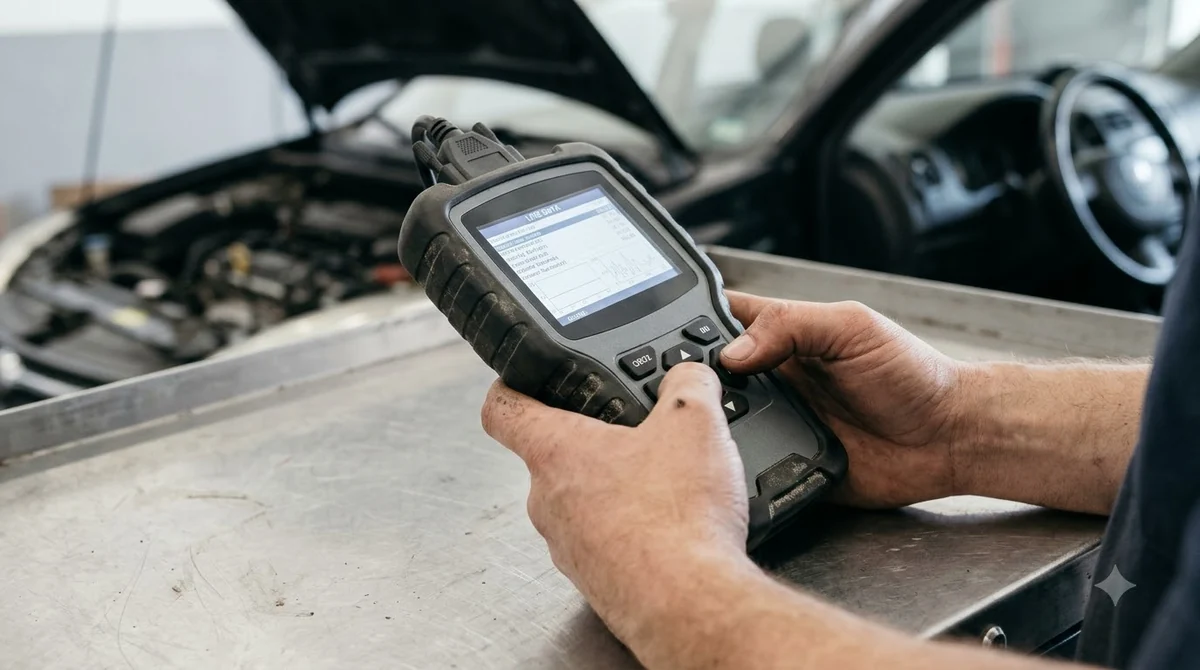
- Turn the ignition off.
- Find the 16-pin Data Link Connector (DLC), usually under the dash on the driver’s side.
- Plug the OBD II cable into the DLC.
- Turn the ignition on, then press POWER on the tool.
The KW310 has six labeled buttons. Learn them first, because every menu uses the same set, and that is the core of how to use Konnwei KW310. Push the connector fully into the port before you start, since a loose plug is one of the causes the manual lists for a linking error.
| Button | What it does |
|---|---|
| POWER | Turns the tool on. Hold it for at least 2 seconds to reset a frozen tool. |
| ENTER | Opens the Main Menu and confirms a selection. |
| UP / DOWN | Scrolls through menu options and data screens. |
| ESC | Returns to the previous screen. Also keeps stored data when the tool asks to erase it. |
| HELP | Shows the full name of a PID. |
Press ENTER to open the Main Menu, then use UP and DOWN to select Diagnostics. If several modules respond, pick one with UP and DOWN, such as the PCM or TCM, and confirm with ENTER.
Reading Stored and Pending Codes
Reading codes is the most common task when you learn how to use Konnwei KW310. Select Diagnostics and read the codes to see each trouble code, its status and the MIL status. Write every code down before you move on, because the erase step later removes them from the tool.
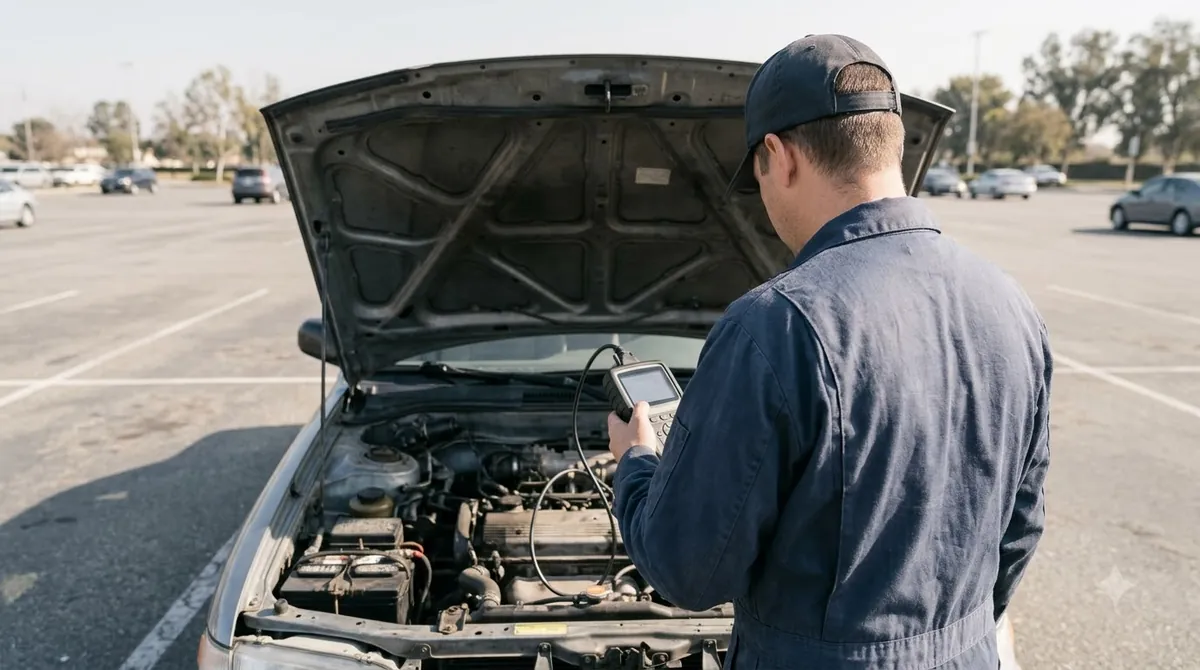
A steady check engine light means the vehicle’s OBD system has detected a problem. A blinking light signals a severe misfire that can damage the catalytic converter, so the car needs attention soon. Read the full guidance in EPA’s check engine light guide. Our guide on handling a flashing check engine light covers the next steps.
Stored and pending codes
Stored codes turn on the MIL when an emissions fault occurs. Pending codes flag a problem seen during the current or last drive cycle. They do not turn on the MIL, and they clear if the fault does not return. Knowing the difference matters when you use the KW310 for diagnosis. A similar handheld from Zurich is explained in the guide to using the Zurich ZR13 scanner.
Live Data and Freeze Frame Snapshots
Freeze frame stores the sensor values saved when a code set, while live data shows PID values as they change. Check freeze frame first when you need to know the conditions at the moment of the fault. It is the first place to look in how to use Konnwei KW310 for a past fault.
- Select View, Freeze Frame from the Diagnostic Menu and press ENTER.
- Wait while the tool validates the PID map.
- Use DOWN to scroll if the data runs past one screen.
- If nothing is stored, the screen shows “No freeze frame data stored!” Wait a few seconds or press any button to return.
Use freeze frame and live data together when you can, as part of how to use Konnwei KW310 on intermittent faults. Freeze frame tells you the conditions at the moment a code set, and live data tells you whether those same values still appear while the engine runs. When the two match, the reading is easier to trust before you move on to a repair.
Live Data shows PIDs in real time. Record Data captures values around an intermittent fault, with five frames before the trigger and several after. Use Playback Data from the Live Data menu to review a recording.
Vehicle Info shows the VIN, calibration IDs and CVNs on 2000 and newer vehicles that support Mode 9.
I/M Readiness and Erasing Codes
I/M Readiness shows whether each emissions monitor has finished its self-test. Check this screen before you erase, since erasing resets every monitor. This is a key step in how to use Konnwei KW310 before an emissions test.
Use the readiness table as a checklist before an emissions test. A fresh erase sets every monitor back to Not Ready, so a car that was just cleared will show more INC and NO results than one that has been driven normally. Plan the test around that, not around the scanner screen alone.
| Status | Meaning |
|---|---|
| OK | The monitor finished testing. |
| INC | The monitor has not finished testing. |
| N/A | The vehicle does not support that monitor. |
Some vehicles show two views: DTCs Cleared, counted since the last erase, and This Drive Cycle, counted since the current drive cycle began. A NO result does not always mean a failed state inspection, because some states allow certain monitors to be not ready.
Knowing how to use Konnwei KW310 safely means erasing codes only with the key on and the engine off, and only after the system has been fully checked. Press ENTER to erase stored data at Diagnostics startup, or ESC to keep it.
- Erasing also removes freeze frame data and manufacturer-specific data.
- All readiness monitors reset to Not Ready or Not Complete after an erase.
- Do not erase until a technician has finished checking the system.
Troubleshooting the KW310
Most problems people hit when they learn how to use Konnwei KW310 come from a loose connector, a frozen screen or a low battery, and each has a short fix.
| Problem | Fix |
|---|---|
| LINKING ERROR! | Check that the ignition is on and the connector is secure, confirm the vehicle is OBD II compliant, then turn the ignition off for about 10 seconds and retry. |
| Frozen screen | Hold POWER for at least 2 seconds. If it stays stuck, turn the ignition off for about 10 seconds, then back on. |
| Tool will not power up | Check the DLC connection and pins, and confirm the vehicle battery reads at least 8.0 V. |
If the problem continues after you learn how to use Konnwei KW310 correctly, contact Konnwei customer service, since the manual copy gives no further steps for hardware faults. Another handheld OBD2 code reader follows a similar routine, as shown in these plug-in-and-read steps for the ANCEL AD530.
Frequently Asked Questions
Can the KW310 read codes on every car?
No single scanner reads every system on every vehicle. The manual describes the KW310 as an OBD II and EOBD reader that supports CAN vehicles. OBD II applies to gasoline cars and light trucks from 1996 and newer. If your car is older, confirm compatibility before you learn how to use Konnwei KW310.
Does erasing codes turn off the check engine light?
Erasing clears stored codes and resets the monitors, but the light goes off by itself only after the problem that set it is fixed. EPA notes that the OBD computer turns the light off once the fault is addressed, so an erase alone will not clear a real fault.
What does LINKING ERROR mean on the KW310?
It means the tool cannot talk to the vehicle’s computer, which is the first hurdle when you learn how to use Konnwei KW310. Confirm the ignition is on, the connector is seated and the vehicle is OBD II compliant. Then turn the ignition off for about 10 seconds and try again.
What do OK, INC and N/A mean in I/M Readiness?
OK means the monitor finished its self-test. INC means it has not finished yet. N/A means the vehicle does not support that monitor, so it does not count toward the readiness result. Expect INC or N/A on most monitors right after an erase, until the car completes its own tests.
Can the KW310 test ABS or airbag systems?
One comparison review says the KW310 cannot test SRS or ABS systems. Check the manual that came with your unit before you expect data from those systems. Engine codes and live engine data are the tool’s core use. Treat that review as a single source and confirm it against the manual for your exact unit.
A KW310 shows what the car’s computer recorded, but a code alone does not name the broken part. This is the final step in how to use Konnwei KW310 on a real car. Pair the readings with the vehicle’s service information before you replace anything, and record every code before you erase it. For a similar handheld, see Actron handheld scan tool steps.