
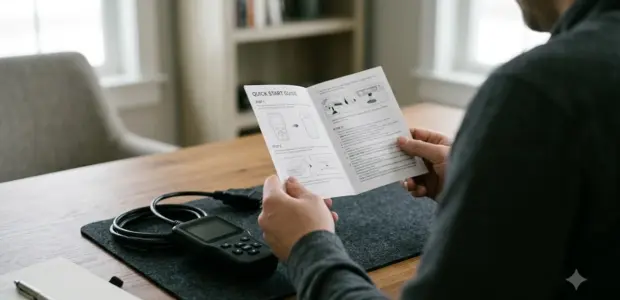

To learn how to use Techstream, you need an active Toyota TIS subscription and an approved interface, because the software runs only with a valid account. Techstream is Toyota and Lexus factory diagnostic software, and most owners reach it through the Techstream Lite Kit.
The steps below cover legitimate access, setup and a first diagnostic session. If you do not hold a subscription, register through Toyota’s own portal rather than a copied installer. This guide explains how to use Techstream for legitimate diagnostics only.
Getting Access to Techstream
Before you learn how to use Techstream, note that it is available only with a TIS subscription from Toyota, which you register for on the Techinfo site using an email ID and password. TIS is Toyota’s service information system for Toyota, Scion and Lexus vehicles marketed in North America. A comparable Ford tool is in FORScan access and licensing.
New users pick a subscription level on the site and pay through a payment page run by a Toyota third-party vendor. Returning users manage or renew an account from the same portal. The Techstream Scantool Software is listed under the diagnostics and reprogramming options, but the page does not define its requirements, so check them before you pay, because the requirements decide how to use Techstream on your PC. According to Toyota’s TIS portal, security content is limited to registered NASTF security professionals, so most owners will not see it.
Plan the access step before you buy any hardware. Learning how to use Techstream starts with a valid account, because the software and its calibration data sit behind the TIS login. Without that account, the interface is only a cable.
What You Need Before You Connect
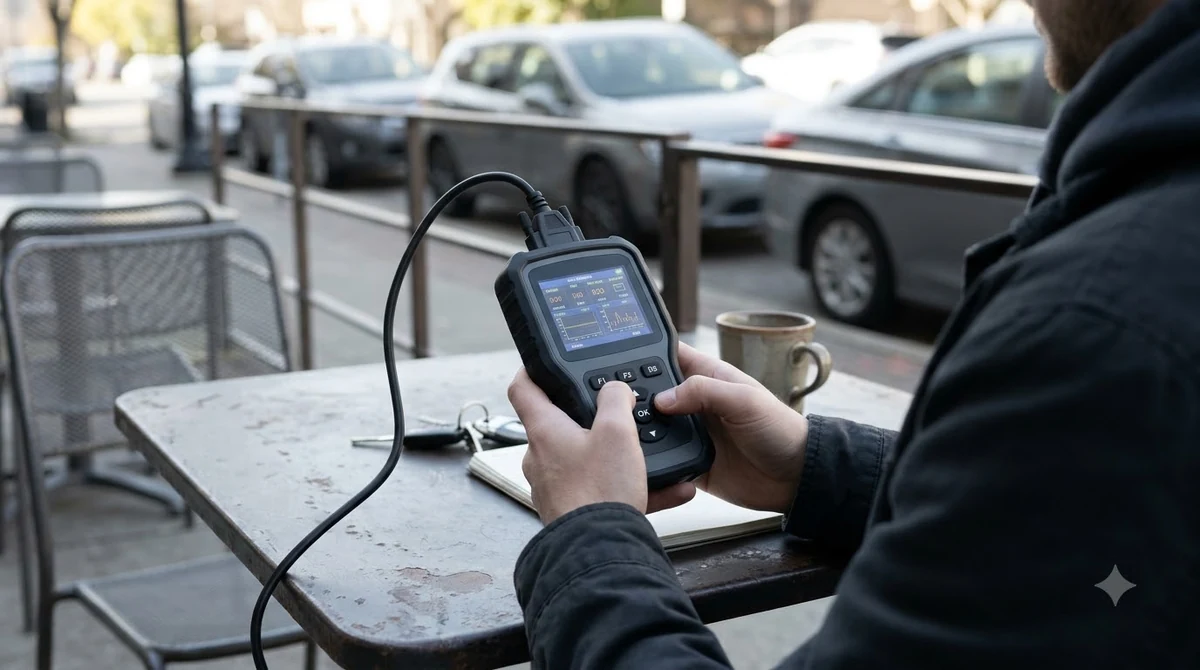
To run Techstream Lite you need a PC that meets the kit’s minimum requirements, an active TIS subscription and a Techstream Lite Kit. Toyota’s FAQ, updated April 28, 2026, lists these basics and adds one rule about the internet connection.
- A PC that meets the Techstream Lite minimum requirements, with internet access.
- An active TIS subscription, which Toyota states is required to use the software.
- A Techstream Lite Kit with a Mongoose-Plus MFC3 vehicle interface module.
- A weekly connection to TIS. A persistent internet connection is not required.
Choosing the right kit
Toyota recommends the TSLP3SW01 kit for aftermarket customers because it includes a one-year Professional Diagnostic subscription. That bundle covers service information, Techstream software and reprogramming calibrations. The lower-cost TSLP3AM01 kit does not include that subscription, so check the contents before you order. Toyota’s Techstream Lite FAQ lists both options side by side.
A Standard subscription does not cover the Techstream software by itself. Toyota says an existing Standard subscription can be upgraded to Professional Diagnostic by calling Techinfo Support, and the upgrade is prorated.
Before you learn how to use Techstream on a real vehicle, check three things: the PC, the account and the kit. Each one has a limit. The PC must meet the minimum requirements, the account must be active, and the kit must match the subscription you plan to use.
How to Use Techstream: Step-by-Step Setup
Learning how to use Techstream starts with five setup steps: sign in to TIS, install the software on one registered PC, connect the interface to the vehicle, choose the correct interface in the software, then open the Main Menu.
- Sign in to TIS at techinfo.toyota.com with your email ID and password.
- Install Techstream on the one PC registered to your subscription.
- Plug the Mongoose-Plus MFC3 interface into the vehicle’s diagnostic port, then connect it to your PC.
- Select the correct interface in the software setup before you start a session.
- Open Techstream, which starts at the Main Menu, and pick the function you need.
Knowing how to use Techstream well means following the on-screen prompts and the official help for your version, because menu names change between releases. Each subscription allows one registered installation, so set up the software on the PC you plan to use for every job.
Many setup problems come from skipping the registration step. If the software refuses to connect, confirm that your subscription is active and that you are on the registered PC. Only then move on to the interface settings, which is the next place to look when the vehicle does not respond.
Running Your First Diagnostic Session
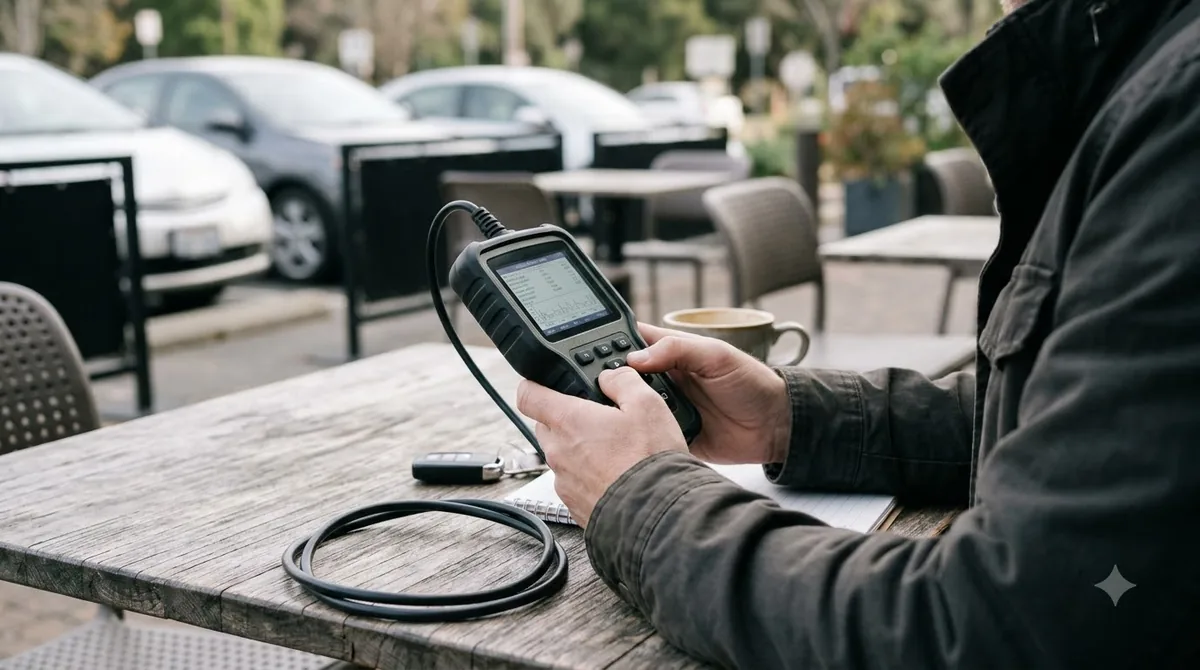
Once you are connected, use the Main Menu to choose the function you need, such as reading diagnostic trouble codes, viewing live data or running an active test. Start with one clear goal, because learning how to use Techstream is easier when each session answers one question. Techstream is Toyota’s OEM software and it reports on the brand’s own systems. A handheld option is in Topdon handheld scanner steps.
- Write down any trouble codes before you clear them.
- Compare live data against the service information for your model.
- Keep your TIS subscription active for the whole session.
Some buyers report using Techstream for active component tests, oil service resets and TPMS sensor ID entry. These are user reports from reviews, not a Toyota feature list, so confirm each function against the service information for your model.
A good session follows a simple order: connect, confirm the vehicle, read the codes, check live data, then save notes. That order keeps the work repeatable, and it is the same routine a shop uses when it learns how to use Techstream on a new job. Keep the notes with the vehicle record so the next session starts from the same point.
Common Problems That Stop Techstream Working
Toyota says the PC must reach TIS weekly, and its GTS+ software stops connecting when the Professional Diagnostic subscription expires. Check your renewal date before you start a job, since a lapse ends the session and can stop how to use Techstream on a customer car. Basic scan tools are covered in Actron scan tool troubleshooting.
- Missed weekly TIS connection: the PC needs to reach TIS at least once a week.
- Expired subscription: the connection stays off until you renew.
- Second PC: each Professional Diagnostic subscription covers one registered installation.
- Wrong interface: choose the correct interface in setup before you open a session.
If the connection still fails after these checks, call Techinfo Support at 1-877-762-7666 for subscription help.
The most common mistake is treating the subscription as a one-time purchase. A subscription is a running service, so a lapsed account can stop a job halfway through. Check the renewal date before a planned session, and keep a note of the account email you used to register so support can find it quickly.
What Techstream Costs and Where to Buy It
As of April 28, 2026, Toyota’s FAQ lists the TSLP3SW01 kit at $1,785 and the TSLP3AM01 kit at $545, plus shipping and sales tax. Prices change, so confirm the current figure before you plan how to use Techstream in a shop.
| Kit | Includes one-year Professional Diagnostic subscription | Price (as of April 28, 2026) |
|---|---|---|
| TSLP3SW01 (recommended) | Yes | $1,785 plus S&H and tax |
| TSLP3AM01 | No | $545 plus S&H and tax |
Order by phone from Approved Dealer Equipment at 1-800-368-6787. Toyota says orders typically ship within three business days by ground, and express shipping costs extra. Toyota lists a Standard subscription at $580 a year and a Professional Diagnostic subscription at $1,500 a year, subject to change.
Budget for the subscription as well as the kit. The kit price covers the hardware and, for TSLP3SW01, a first year of access. Renewal and upgrade charges come later, so compare the total cost of ownership before you decide how to use Techstream in your shop or garage.
Frequently Asked Questions
Can I use Techstream on more than one PC?
Each Professional Diagnostic subscription allows one registered Techstream installation. Toyota says additional PCs need additional Professional Diagnostic subscriptions, so plan the number of installs before you buy access for a shop.
Do I need a constant internet connection?
No. Toyota says a persistent internet connection is not required for Techstream Lite. The PC does need a weekly connection to TIS, so keep it connected to the internet regularly.
Is it legal to use Techstream without a subscription?
Access requires a valid TIS subscription from Toyota. Cracked or copied installers are not authorized by Toyota, and they fall outside the legitimate setup for how to use techstream described here.
Does a Standard TIS subscription include Techstream software?
Not by itself. Toyota says a Standard subscription can be upgraded to Professional Diagnostic by calling Techinfo Support at 1-877-762-7666, and the upgrade is charged as a prorated difference.
Can I use Techstream on newer Toyota models?
Toyota’s FAQ describes GTS+ as the software that also requires a Professional Diagnostic subscription. Check which software your vehicle needs in TIS before you buy an interface and learn how to use Techstream on it.
Knowing how to use Techstream the legal way means keeping a valid TIS subscription and buying the kit from an authorized seller. Cracked installers are not authorized by Toyota, so skip them even when a forum post offers one.