
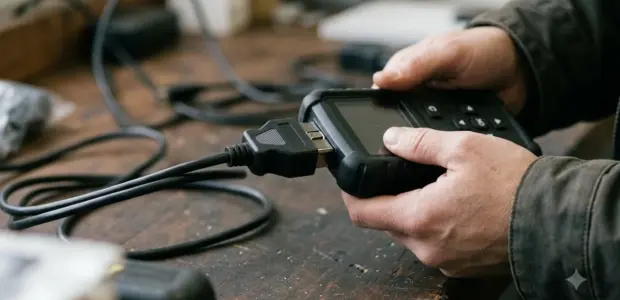

How to use Innova 5210 comes down to one step: plug the scanner into the 16-pin port with the ignition off, then turn the ignition on to read codes on the display.
Knowing how to use Innova 5210 saves time, because the 5210 is a handheld OBD2 code reader and scan tool. Use it to find the trouble code, then confirm the fault with the vehicle’s service information before you buy parts.
What You Need Before You Use Innova 5210
Before you learn how to use Innova 5210, check that you have an OBD2 compliant vehicle that can start or crank, a 16-pin Data Link Connector, and the scanner with its cable. Check these four items before you start.
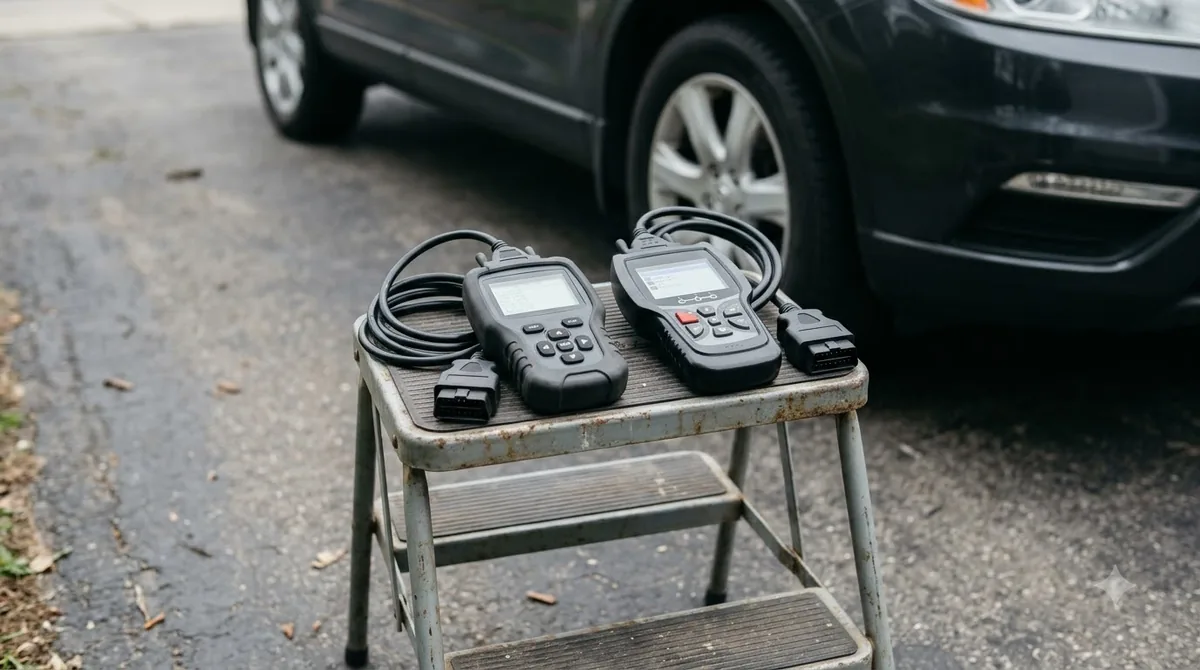
- A vehicle sold in the US or Canada. Innova’s product page says the 5210 is built for most US and Canadian vehicles.
- A 16-pin Data Link Connector (DLC). Some DLCs have a plastic cover that must come off before you connect.
- Enough battery power for the engine to start or at least crank. The scanner cannot link to a vehicle that cannot crank.
- The 5210 unit, its cable, and your ignition key.
Features vary by year, make and model, so a function in how to use Innova 5210 may not appear on your car.
How to Use Innova 5210 to Read Codes
Learning how to use Innova 5210 for codes takes seven steps: turn the ignition off, plug the scanner into the 16-pin port, then turn the ignition on without starting the engine. Codes appear about 10 to 60 seconds later.
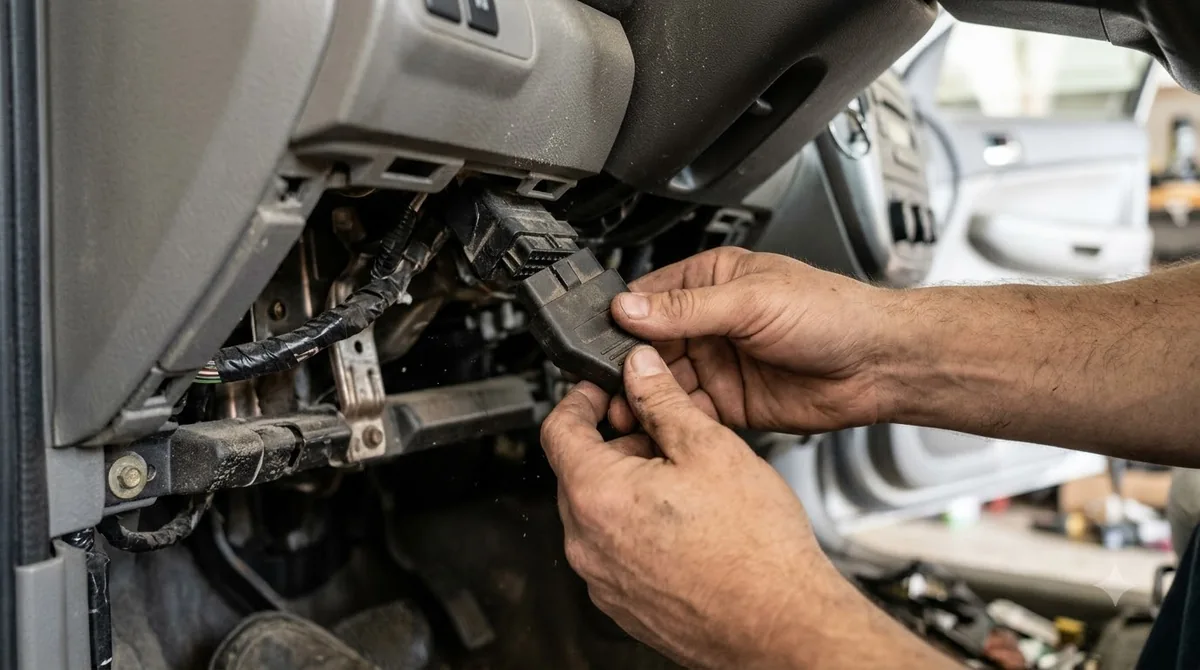
- Turn the ignition off. Connecting or disconnecting the cable with the ignition on can damage the scanner and the vehicle’s electronic components.
- Find the 16-pin DLC. If it has a plastic cover, remove the cover first.
- Connect the cable to the DLC. The connector is keyed and fits only one way. If it does not fit, rotate it 180 degrees.
- Turn the ignition on, but do not start the engine. The scanner turns on by itself once it is connected. If it does not, check the fuse panel.
- Wait while the scanner identifies the vehicle’s communication protocol. It links automatically, and a Communication Error appears if the link fails.
- Confirm the vehicle. If the VIN decodes, select Yes. If not, the Select Vehicle screen lists the three most recently tested vehicles, or you can choose New Vehicle and pick the make.
- Read the results. The scanner shows any codes, monitor status and freeze frame data, and it can store up to 32 codes.
The Innova 5210 user manual describes the same sequence, including the keyed connector and the 180 degree rotation.
What the LEDs and Code Colors Mean
Reading the lights is part of how to use Innova 5210: the green LED means all systems are running normally, the yellow LED points to a pending code or unfinished monitor tests, and the red LED means a stored fault with the check engine light on.
| Signal | What it means | What to do next |
|---|---|---|
| Green LED | All systems are OK, and the monitors have run with no codes present | No stored codes to chase |
| Yellow LED with PENDING on screen | A pending code is present | Check whether the code returns after the car runs its tests |
| Yellow LED with zero codes | Some monitors have not finished their tests | Look at the monitor icons: blinking means not yet run, solid means complete |
| Red LED | One or more systems have a fault, and the check engine light is on | Read the code and freeze frame data before you act |
Codes that start with P0, P2 and some P3 are generic, and the scanner shows their definitions automatically. Codes that start with P1 and some P3 are made by each manufacturer, so their definitions vary by brand. The code number is red for a stored or permanent code and yellow for a pending code.
Freeze Frame Data and Severity Levels
Freeze frame data is a snapshot of engine conditions saved for the priority code, numbered 01, at the moment the fault set. For anyone learning how to use Innova 5210, it is the first place to look when a code appears.
The manual lists engine speed, coolant temperature, vehicle speed, air flow rate and intake manifold pressure among the saved values. Press DTC/FF to scroll through the other codes. Freeze frame data always refers to code 01, not to the codes that follow it.
For the priority code, the scanner also shows a severity level from 1 to 3:
- Level 1: schedule service and repair when convenient, since the code poses little immediate threat.
- Level 2: repair immediately if drivability problems are present.
- Level 3: stop and repair the vehicle right away, because the fault can damage other essential components.
The manual warns against replacing any part based only on a code definition. Each code has its own test procedure, so follow the vehicle’s service information before you buy parts.
Erasing Codes With the ERASE Button
The ERASE button clears stored codes and freeze frame data and resets monitor status, but it does not repair the fault that set the code. If the same code returns, the fault is still present. A comparable tool is in Actron handheld scanner use.
Write down the codes, freeze frame data and monitor status before you press ERASE, since recording first is part of how to use Innova 5210 safely. After erasing, the monitors show as not run until the car completes its tests again, so the readiness picture starts over.
Innova’s product information lists a limit: the handheld scanners cannot erase codes on 2018 and newer FCA vehicles that need AutoAuth access. Check that limit for your vehicle before you rely on ERASE, because it decides whether how to use Innova 5210 can clear codes at all.
Features Only the Innova 5210 Adds
Beyond basic code reading, the 5210 adds live data, System Menu codes, a battery and alternator test, a system test and a tool library. The 5110 manual’s contents list none of these five functions. The simpler model is in entry Innova scanner instructions.
- Live data: the product page says the scanner can access and analyze real-time data from several systems at once. The manual has a Live Data Mode section and a page on customizing the data stream.
- System Menu: retrieves enhanced codes for Audi, BMW, Chrysler/Jeep, Ford/Mazda, GM/Isuzu, Hyundai, Kia, Mercedes Benz, Toyota/Lexus and Volkswagen, along with ABS codes.
- Battery/Alternator Test: the manual has a dedicated section for this test. This guide does not walk through its steps, so read that section before you test a battery.
- System Test Menu and Viewing Vehicle Information: both have their own manual sections, which this guide does not cover.
- Tool Library: the manual has a section for this, which this guide does not cover.
RepairSolutions2 App and Bluetooth or WiFi
The RepairSolutions2 app is free and optional, and the manual for how to use Innova 5210 includes a section on connecting the scanner to Bluetooth or WiFi.
As of November 3, 2026, Innova’s 5210 product page calls the app 100% optional and free to use. It adds ASE-verified fix recommendations, scan export and technical service bulletins.
On the scanner, a solid blue Bluetooth icon means an active connection, and a grey icon means it is not connected.
The product page does not say whether the 5210 uses Bluetooth, so check the manual’s connection section for your unit before you plan how to use Innova 5210 over Bluetooth.
Limits and Common Connection Problems
Before you learn how to use Innova 5210 on a car, confirm these limits: the 5210 works only in the US and Canada, cannot reprogram vehicle computers, and does not support key fob programming. Another tool is in Topdon scanner connection steps.
When the scanner shows Communication Error during how to use Innova 5210, work through these checks in order:
- Confirm the vehicle is OBD2 compliant.
- Check the DLC connection and make sure the ignition is on.
- Turn the ignition off, wait 5 seconds, then turn it back on.
- Press LINK to try again.
- After three failed attempts, the scanner shows Contact Technical Support.
If the scanner does not power on, check the fuse panel and replace any blown fuse. If that fails, the manual advises finding the PCM fuse or circuit in the repair manual.
Frequently Asked Questions
Does the Innova 5210 work on every car?
No. Innova’s product page says the 5210 works with most US and Canadian vehicles, and that features vary by year, make and model. It does not work outside the US and Canada, so check your vehicle before you start learning how to use Innova 5210 on it.
Can the Innova 5210 read ABS codes?
Yes, for some makes. Learning how to use Innova 5210 for ABS codes starts with the manual’s section on viewing ABS DTCs, and the System Menu also retrieves ABS codes for listed makes. Availability depends on the vehicle, so check the manual for your make.
Does the Innova 5210 need the RepairSolutions2 app?
No. The product page calls the app optional and free to use. It adds ASE-verified fix recommendations, scan export and technical service bulletins, but you can learn how to use Innova 5210 for codes from the display alone.
How many codes can the Innova 5210 store?
According to the manual, the scanner can store up to 32 codes in memory for immediate or later viewing.
Why does the Innova 5210 show a Communication Error?
The scanner could not link to the vehicle computer. Confirm the car is OBD2 compliant, check the cable at the DLC, and cycle the ignition. After three failed attempts, the scanner shows Contact Technical Support.
What is the Innova 5210 warranty?
The product page and the manual both list a one-year limited warranty. The product page also mentions 30-day returns but gives no further terms. Read the warranty section that came with your unit.
Knowing how to use Innova 5210 is only half the job. Use the 5210 to find the code, then confirm the fault with the service information for your exact car before you buy parts or erase anything. If the same code returns after an ERASE, the fault is still present and needs testing.