
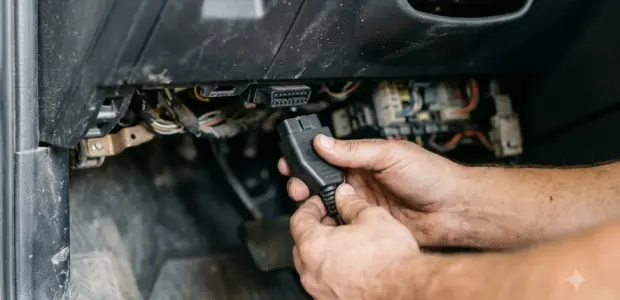

Learning how to use Innova 5110 is a short process: plug the cable into the car’s 16-pin port with the ignition off, turn the ignition on without starting the engine, and read the codes on the screen. The steps below follow the order in Innova’s manual for this model.
The 5110 reads and clears engine codes, reads ABS codes on vehicles that support them, and shows emissions monitor status. The steps for how to use Innova 5110 here apply to the 5110 only, not to other Innova models.
Before any step in how to use Innova 5110, remember that this scanner connects to your vehicle’s electrical system. Turn the ignition off before plugging in or unplugging the cable, and work in a well-ventilated area if the engine runs. Never replace a part based only on a code; follow the service manual’s test steps.
What You Need Before You Start
You need the Innova 5110, a vehicle with a 16-pin OBD II port, and the ignition switched off while you connect the cable. Knowing how to use Innova 5110 starts with this setup, and the RS2 app is optional, so you can read and clear codes without a phone app.
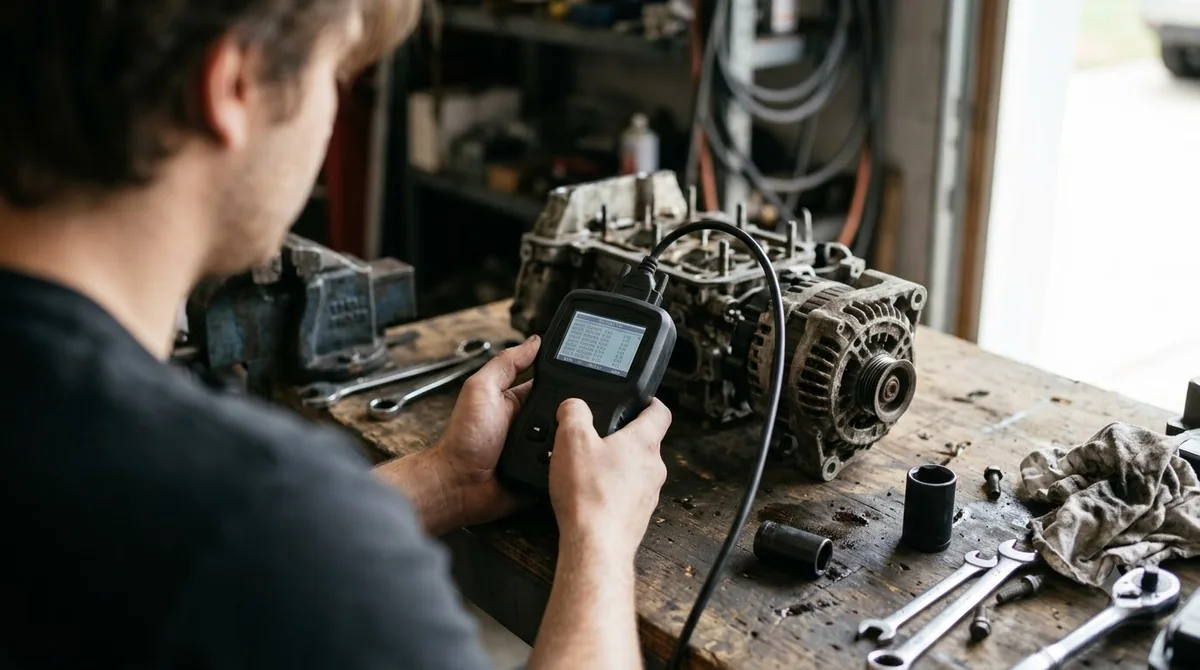
- The Innova 5110 with its OBD II cable
- The vehicle’s 16-pin Data Link Connector, clear of obstructions
- A notepad or phone to record each code before you erase anything
How to Use Innova 5110 to Read Engine Codes
Plug in the cable with the ignition off, turn the ignition on without starting the engine, and the 5110 shows any stored codes after a few seconds. Follow the five steps below in order, as laid out in the Innova 5110 user manual. Following that order is the core of how to use Innova 5110 for codes.
- Turn the ignition off and locate the vehicle’s 16-pin Data Link Connector.
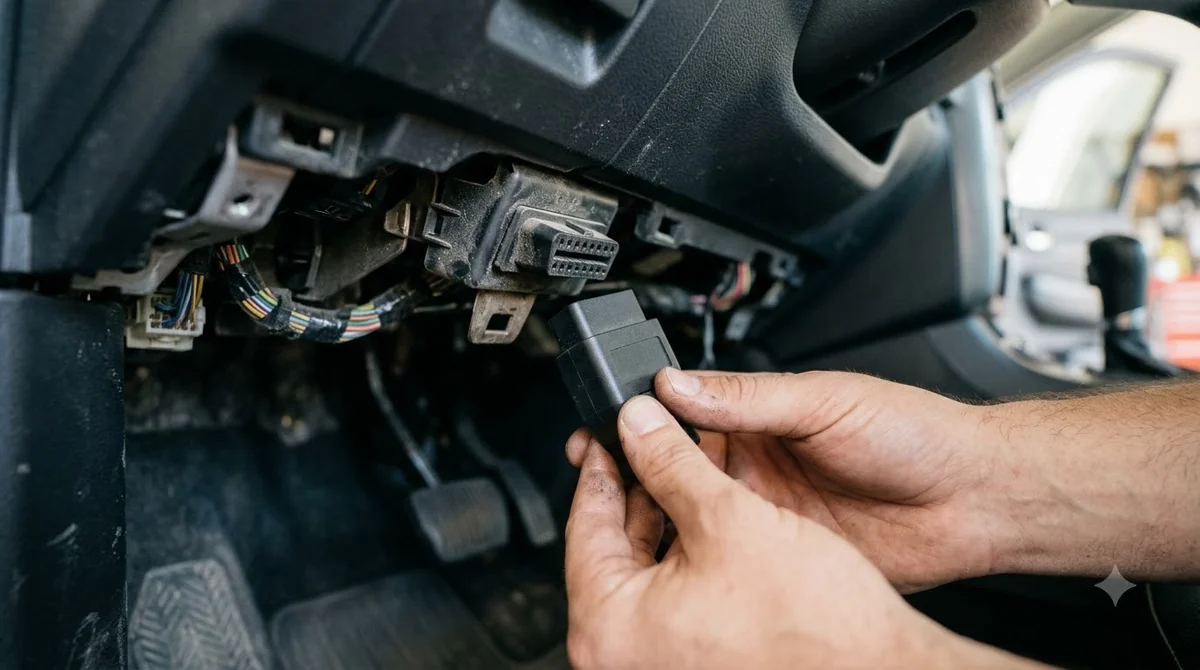
- Plug the 5110 cable into the connector. The connector is keyed, so if it does not fit, rotate it 180 degrees and try again.
- Turn the ignition on. Do not start the engine.
- Wait a few seconds. The 5110 links to the vehicle’s computers and shows any stored codes on the LCD.
- Press CODES to move to the next code. After the last code, press CODES again to return to the priority code.
Once you know how to use Innova 5110 for reading, the next job is interpreting what you saw. If the screen shows 0 DTC, the vehicle has no stored trouble codes at that moment. Write down each code and its number before you do anything else, because a code definition is only the start of the diagnosis. Look up the definition in the RS2 app or on the vehicle maker’s website, then follow the service manual’s test procedure.
Reading the LEDs, Monitor Status and Severity
On the 5110, the LED colors give a quick read: green means all systems are OK, yellow means a pending code or an incomplete monitor, and red means stored codes with the check engine light on.
| LED | What it means | What to do |
|---|---|---|
| Green | All engine systems are OK, all monitors are active, and the screen shows 0 DTC | No code action needed |
| Yellow | A pending code is present, or the screen shows 0 DTC while some monitors are still incomplete | Check the screen and the monitor icons |
| Red | Confirmed codes are stored, and the check engine light is on | Record the codes before you erase anything |
Monitor icons are the part of how to use Innova 5110 that matters for an emissions test. They show the status of each emissions system. A solid icon means the monitor has finished its test, a slowly flashing icon means it is still incomplete, and a quickly flashing icon means it is disabled for the current drive cycle. Some states require every monitor to be complete before a Smog check, so check this view before an emissions test.
For the priority code, the 5110 also shows a severity from 1 to 3. Severity 1 typically does not damage components and can be serviced when convenient. Severity 2 may damage components and should be repaired soon, and severity 3 will cause damage and should be repaired immediately.
Reading ABS Codes on the Innova 5110
The 5110 reads ABS codes when you press the BRAKES button, but only on vehicles with VIN-based identification. On other vehicles, or on a car with no VIN, the screen shows N/A.
- Complete the engine code steps above so the 5110 is linked to the vehicle.
- Press the BRAKES button. The 5110 connects to the ABS control module and shows any stored ABS codes.
- If there is more than one code, press and release BRAKES to scroll. After the last code, the screen returns to the first code.
- To leave ABS mode, press CODES to return to OBD II mode.
A 0 DTC message in ABS mode means no ABS codes are stored in the ABS controller’s memory. The N/A message means the car does not support ABS through this tool, as Innova’s ABS scanning guide also describes. Knowing how to use Innova 5110 for ABS is only part of the job, so check the vehicle’s service manual for ABS test steps before you replace any brake part.
Erasing Codes Safely
To erase codes on the 5110, press ERASE, press it again to confirm, and wait for DONE on the screen. Erasing also deletes freeze frame data, so retrieve and record the codes first. The upgraded model is in Innova 5210 features and steps.
- Retrieve the codes first, using the steps for how to use Innova 5110 above. For ABS codes, press BRAKES to retrieve them.
- Press ERASE. The screen shows “ERASE?” for confirmation. To cancel, press CODES.
- Press ERASE again. The screen shows “ERASE” while it works and “DONE” when finished. If it shows “SENT”, the erase did not succeed.
Erasing also clears manufacturer-specific enhanced data, and the emissions monitors go back to a not-run state. Setting every monitor to complete again needs a full OBD II drive cycle, which the vehicle’s service manual describes. Erasing does not repair the fault, and knowing how to use Innova 5110 for erasing does not change that. If the problem is still there, the code and the check engine light return once the monitors run again.
If you plan to take the car to a service center, do not erase codes, whatever you learn about how to use Innova 5110 for erasing. The manual warns that a technician loses information that may help diagnose the problem.
Fixing Connection Problems
If the screen shows ERROR or stays blank, the cause is usually a communication or power problem. When you cannot get past the first step of how to use Innova 5110, do a quick check of the cable, the fuse panel and the vehicle’s OBD II compliance.
- ERROR on the screen: the 5110 cannot reach the vehicle computer. Turn the ignition off, wait 5 seconds, and turn it back on to reset the computer.
- ERROR after the reset: confirm the vehicle is OBD II compliant before you try again.
- Blank screen: no power reaches the connector. Check the fuse panel and replace any burned-out fuse.
- Fuses are fine but the screen is still blank: the manual points you to the vehicle’s service manual to find the computer fuse and circuit.
- Cable does not fit: rotate the connector 180 degrees and try again, then check the connector against the service manual.
Using the RS2 App With the 5110
The RS2 app is optional. After you read the codes, a free RS2 account pairs the scanner over Wi-Fi and matches the codes to likely fixes. According to Innova’s manual, RS2 draws on verified fixes reported by ASE Certified Master Technicians, and it also shows technical service bulletins and recalls. A rival tool is in Topdon handheld scan walkthrough.
- Register for a free RS2 account before you pair the scanner.
- Retrieve the codes with the 5110 first, then open the app and log in.
- Select your scanner from the list while the phone is connected to Wi-Fi.
- The app stores up to two Wi-Fi configurations.
- If the data does not transfer, keep the app and scanner paired and scan the vehicle again.
The app is a helper, not a requirement, so how to use Innova 5110 works without it. The 5110 displays and clears codes on its own screen.
Frequently Asked Questions
Can the Innova 5110 read ABS codes?
Yes, when you know how to use Innova 5110 for ABS, on vehicles with VIN-based identification. After the engine codes are retrieved, press the BRAKES button to read stored ABS codes. If the vehicle does not support ABS or has no VIN, the screen shows N/A instead of codes.
Does the Innova 5110 erase codes?
Yes. Press ERASE, then press it again to confirm. The erase also clears freeze frame data and resets the emissions monitors, so write down the codes before you erase them and keep them for a service visit.
Do I need the RS2 app to use the 5110?
No. Learning how to use Innova 5110 does not require the app, since the scanner shows and clears codes on its own. The RS2 app adds verified fixes and related information, but it needs a free RS2 account and pairing over Wi-Fi.
Is the Innova 5110 the same as the Innova 5210?
No, they are separate models, so the steps in this guide cover the 5110 only. Before you apply any how to use Innova 5110 steps from this guide, check the manual for the exact model you own, since button names and features can differ between units.
Should I erase codes before taking the car to a shop?
No. The manual warns that erasing removes data a technician may need to find the fault. Write down each code, its severity and the screen messages, then share them with the shop.
Knowing how to use Innova 5110 is the easy part, so use it to read and record the codes. A code shows which system reported a fault, not which part failed. Let the service manual’s test steps confirm the repair before you spend money on parts.