
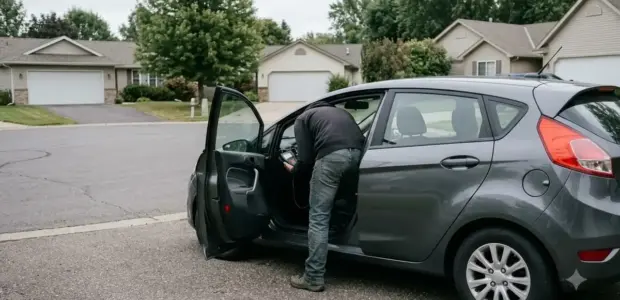

Learning how to use AlfaOBD comes down to connecting a supported OBD2 adapter, selecting your car’s control unit, and reading the fault codes. AlfaOBD is diagnostic software for Stellantis cars, including Fiat, Alfa Romeo, Lancia, Chrysler, Dodge, Ram and Jeep.
Learning how to use AlfaOBD on a phone has one limit: no iPhone version exists, so use Windows or Android. If your car is a 2018 or newer model, check the security gateway before you buy an adapter.
Some active procedures change vehicle settings or have effects that cannot be undone. Read every on-screen warning before you start, which is the safest way to learn how to use AlfaOBD, and ask a qualified technician if you are unsure.
How to Use AlfaOBD to Connect and Read Faults
AlfaOBD connects through your OBD2 adapter, detects the control unit, and reports the result in the Status line after you click Connect. The START tab is where you choose your car and the electronic control unit (ECU) to diagnose.
The program detects the type and modification of the ECU on its own, so you seldom need to set it by hand. If the connection fails, a message lists the likely causes. The official AlfaOBD Help manual describes each tab in detail, and it is the best reference for how to use AlfaOBD in full.
How to Use AlfaOBD Step by Step
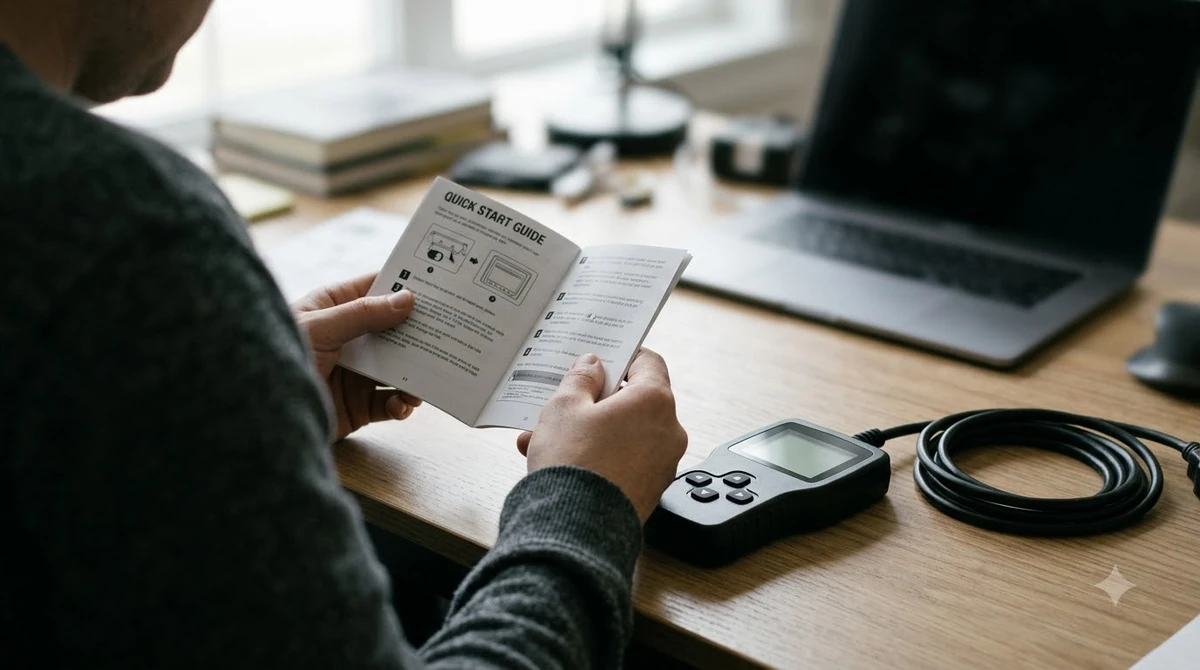
Before you connect, set the interface once in Advanced mode. Use the steps below each time you start a session to learn how to use AlfaOBD in practice.
- Plug the adapter into the car’s OBD2 port and turn the ignition to RUN.
- Open AlfaOBD, accept the license agreement, and grant administrator permission if Windows asks.
- Select your car and the ECU on the START tab, then choose the interface and the COM port or Bluetooth device.
- Make sure the ignition is still in RUN, then click Connect.
- Wait for the Status line to confirm the connection before you open the other tabs.
What You Need Before You Connect
Before you learn how to use AlfaOBD, you need a Windows PC or an Android device, an adapter that AlfaOBD supports, and a car on the official vehicle list. Mac users need Windows running through Parallels or Boot Camp. For Volkswagen, see VCDS interface setup.
The official site lists support for Windows XP through Windows 11 and Android 4.0.3 or later, and says both versions offer the same functions. Vehicle coverage runs from 1994 to 2025 for Fiat, Alfa Romeo and Lancia, and from 2005 to 2025 for Chrysler, Dodge, Ram and Jeep, as of November 3, 2026. The full model list is on the AlfaOBD website, which also covers how to use AlfaOBD with each adapter.
| Interface | Connection types | What to know |
|---|---|---|
| ELM327 clone | USB, Bluetooth or WLAN | The chip must be version 1.3 or later. Many clones report NO DATA or CAN ERROR. |
| OBDLink SX, LX, MX or MX+ | Adapter with a faster link | Communicates at 115200 bps, but the ELM327 limits still apply. |
| OBDKey | Bluetooth, USB or WLAN | Supports both K-Line and CAN-based units. |
| KLLine | Serial or USB | Works only with K-Line units, not CAN. |
Security Gateway Caveat for 2018 and Newer Cars
Stellantis added a security gateway module starting with the 2018 model year, and it blocks third-party diagnostic tools. AlfaOBD says it has no software workaround, so a hardware bypass is required.
As of November 3, 2026, no bypass is available for the Jeep Grand Cherokee WL, 2025 and 2026 RAM trucks, or the Alfa Romeo Tonale. Disconnect any bypass before you visit a dealer, because dealer tools may fail with it installed.
Read and Clear Fault Codes Step by Step
On the Status/Faults tab, click Read Faults to list the codes stored by the ECU, then click any code to see its description. Clearing faults erases them from ECU memory, so only do that with the engine off. A Ford counterpart is in FORScan setup for Ford.
Once you know how to use AlfaOBD for scans, each stored code appears in the Fault Codes box. For some units, the More Info button shows freeze-frame data, which records the conditions when the fault was set. On units such as airbag or code control modules, the code list stays empty and all data appears in the fault description window instead.
Saving a Fault Log for Later
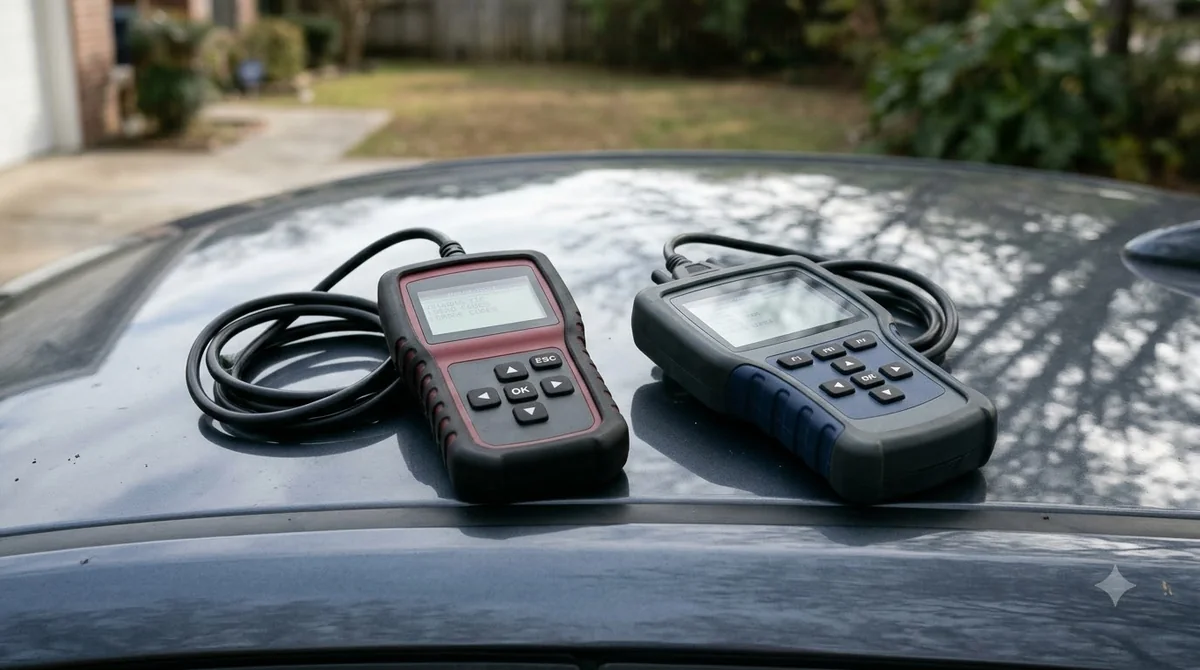
Check the Save log box before you read faults if you want a record. AlfaOBD writes a text file named <ECU_name>_Info.log to the Logs subfolder inside the program folder.
Only data received after you check the box is saved, so turn it on first. From version 1.5.9, the Monitor faults option repeats the fault request, which shows the moment a new code appears.
Run Active Diagnostics Carefully
The Active Diag tab, the riskiest part of how to use AlfaOBD, runs ECU-driven tests, such as checks on lamps, valves and fans. Most procedures last 5 to 10 seconds, and some cannot be stopped once they start.
- Read the on-screen instructions before every procedure, because some have irreversible effects.
- Keep the engine off for most tests, with the key in RUN, unless the guidance says otherwise.
- Check the preconditions such as coolant temperature or engine speed, since AlfaOBD blocks some tests when they are not met.
- Expect the procedure list to change after connecting, because it shows only the tests that match the detected ECU.
- Watch the Status or Plotted Data tab for the parameter a procedure affects.
When a Code Card Login Is Needed
Some procedures and configuration tasks ask for the 5-digit code on the Code Card supplied with the car. Enter the code and click Login with code card, but only when the on-screen guidance asks for it, since the login is part of how to use AlfaOBD safely.
The engine control unit does not report whether a login worked. Start the car with the key to check the result, and do not turn the key to Stop while the engine is starting.
Demo Mode Limits and License Terms
Demo mode lets you practice how to use AlfaOBD, but it limits run time to 15 minutes, allows only the first active diagnostic procedure, and blocks manual connection. The official Help manual says the demo has no limit on how long you can use the program.
This article does not quote a price. Check the Download and Purchase page on the official site for current license terms before you pay for the full version.
Troubleshooting Connection Failures
Most failed connections during how to use AlfaOBD come from the ignition position, a clone adapter with an old ELM327 chip, or an ECU that AlfaOBD does not support. Check those three things first. A simple generic option is in Bluetooth scan tool pairing.
- Turn the key to Stop, wait 30 seconds, return to RUN, and try again.
- Unplug a Bluetooth or USB adapter from the OBD port and plug it back in.
- Pair a Bluetooth adapter with Windows first, or install the USB driver, then check the COM port in Device Manager.
- Turn on the High speed option for ELM327 USB or Bluetooth adapters to try a faster link than 38400 bps.
- Turn on Automatic reconnect if the link drops during a long scan.
- A Wrong ISO message means the ECU is not supported, and the results from that unit are not guaranteed.
On some cars, modules such as airbag or ABS connect only with the key in Stop or Lock. Follow the on-screen message for that unit rather than the general steps above.
Frequently Asked Questions
Does AlfaOBD work on an iPhone?
No. Learning how to use AlfaOBD on an iPhone is not possible, because AlfaOBD runs on Windows and Android only. The official site says the App Store app called Alfa OBD2 is not AlfaOBD, so use an Android phone or a Windows PC instead.
Can I use AlfaOBD on a Mac?
Yes. To learn how to use AlfaOBD on a Mac, run Windows through Parallels or Boot Camp. The official site says that on M1 Macs, Parallels supports only WiFi OBD interfaces, so check your adapter type before you buy.
Which OBD adapter should I use with AlfaOBD?
Knowing how to use AlfaOBD starts with the adapter: use an ELM327-based interface with a chip of version 1.3 or later, or an OBDLink SX, LX or MX unit, which runs at a higher baud rate. The official site lists the interfaces it has tested for compatibility.
Is AlfaOBD free to use?
The demo mode limits run time to 15 minutes, allows only the first active diagnostic procedure, and blocks manual connection. This article does not quote a price, so check the official Download and Purchase page for current license terms.
Why won’t AlfaOBD connect to a 2018 or newer car?
Many 2018 and newer Stellantis cars have a security gateway module that blocks third-party diagnostic tools. AlfaOBD says it has no software workaround, so a hardware bypass is needed, and some models have no bypass yet.
Does clearing fault codes fix the problem?
No. Clearing removes the stored codes from ECU memory, but it does not repair the cause. Read the fault description, check the part it names, and read the codes again later to see whether the fault returns.
Start with a read-only fault scan when you first learn how to use AlfaOBD, before you run any active test. Reading codes carries little risk, but active procedures can change how the vehicle behaves. If a code points to a system you do not understand, or the car needs a security gateway bypass, a qualified technician can confirm the next step before you change anything.