
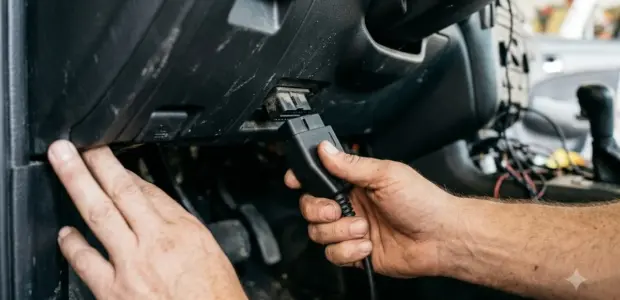

Learning how to use VCDS means connecting Ross-Tech’s diagnostic software to a Volkswagen or Audi, then reading the fault codes stored in its control modules. The steps are short, but the order matters: set the port, run a scan, then read the codes.
VCDS reaches deeper into VW-Audi Group cars than a basic code reader. If your car is from another brand, check the supported vehicle list before you buy a cable.
Coding and clearing codes can change how a car behaves. Use a factory repair manual and fix the cause before you change any setting.
What Is VCDS and Which Cars It Supports
VCDS is Ross-Tech’s diagnostic software for Volkswagen Group cars, which includes VW and Audi models. Ross-Tech describes it as diagnostic software for VW-Audi Group cars, and the company states that it is not affiliated with the Volkswagen Group.
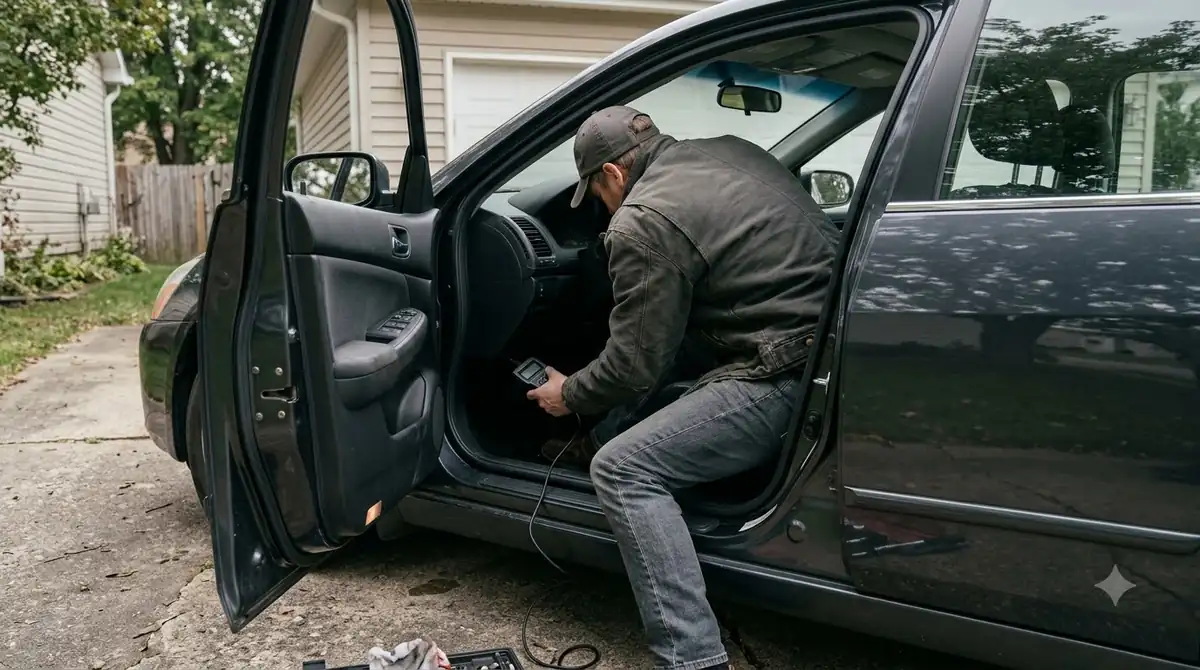
Before you learn how to use VCDS, confirm that your exact model is supported. Support depends on the specific model. Ross-Tech’s wiki notes that a new model may have full documentation, partial support, or no support at all, so check your exact year and model before you buy.
How to Use VCDS: What You Need Before You Start
Before you start, you need a Ross-Tech interface, a laptop running VCDS, and a car that the software supports. A battery charger helps for longer scans. Getting these basics right is the first part of how to use VCDS well, and it saves a failed session later. Phone-based alternatives are in BimmerLink diagnostic app setup.
- A Ross-Tech interface cable that plugs into the car’s diagnostic port.
- A laptop with VCDS installed. Check Ross-Tech’s download page for the current version.
- A battery charger, or the engine running, for long scans.
- A notepad or screenshot tool to record the original results.
Connect the Interface and Set the COM Port
Set the communications port under Options first, then click Test to confirm that VCDS can find the interface. Skipping the test wastes time, because a scan run on a bad connection gives no useful result. The connection step is the foundation of how to use VCDS, since every later step depends on it.
- Plug the interface into the car’s diagnostic port and into the laptop.
- Open VCDS and click Options.
- In Select Com Port, choose the port where the interface is connected.
- Click Test. If VCDS finds the adapter, you can start a scan.
- If Test fails, check the cable and the port choice, then run Test again.
How to Use VCDS to Run an Auto-Scan
Auto-Scan checks the control modules in your car, and the chassis type comes from the 7th and 8th digits of the VIN. Ross-Tech also suggests Auto-Detect on newer cars, which lets the software read the gateway’s installation list. Auto-Scan is the most direct way to put how to use VCDS into practice on your own car, and it is the step most owners start with.
- Click Auto-Scan from the main screen.
- Select the chassis type that matches your car, or Auto-Detect on a newer model.
- Click Start. Ross-Tech warns that the process can take several minutes.
- Watch the scan. VCDS opens each controller’s screens in turn before it returns to the Auto-Scan window.
- Double-click any module highlighted in red to see its fault codes.
- Click Copy Results before you close the dialog, because closing it removes the output box contents.
After a scan, double-click a module to open its controller screen, where Measuring Blocks shows live data. According to Ross-Tech’s Measuring Blocks manual, you can type a group number and click Go, or step through groups with Up and Dn, usually from 000 to 255. Some groups show Not Available, and gaps in the numbering are common.
An unregistered copy scans only a limited number of modules and then stops. The free shareware version also shows only groups 001 to 025 in Measuring Blocks. Check the registration status before you rely on a full scan, as Ross-Tech’s Auto-Scan manual explains.
Read and Clear Fault Codes
Each fault code in VCDS shows a 5- or 7-digit VAG number, a description of the part and failure, and a generic P-code when one exists. According to Ross-Tech’s fault code manual, codes should be erased only after the cause is corrected. Reading codes is the core of how to use VCDS for diagnosis. Another brand app is in coding BMW options on a phone.

- Clear Codes erases the fault codes stored in that module, not every module in the car.
- You cannot erase a single code and keep the others, because of the VAG protocol limits.
- Clearing does not repair the fault, so the code can return if the cause is still there.
- The Clear Results button on the Auto-Scan window erases only the output box, not the codes in the controllers.
Control Module Finder and Scan Time
The Control Module Finder tries every address, and Ross-Tech says a full scan can take 45 minutes or more. Plan for that wait before you learn how to use VCDS on a full-car scan. No car has every module, and newer cars generally have more modules than older ones.
You can shorten a scan by setting a Starting Address, so only part of the address range is checked. Keep a battery charger connected or the engine running during long scans, since a weak battery can interrupt them. Long scans are the part of how to use VCDS that test your patience.
| Scan type | What it does | Time |
|---|---|---|
| Auto-Scan | Scans the modules for the chosen chassis type | Several minutes |
| Control Module Finder | Tries every address in the car | 45 minutes or more for a full scan |
| Finder with Starting Address | Checks only part of the address range | Shorter than a full scan |
Safety Tips Before Coding or Clearing Codes
Before any coding change, record the original setting, because a wrong value can change how a module behaves. Ross-Tech’s coding guidance says to refer to the factory repair manual before recoding a module, and to write down the original values at the very least. It also warns that there is no other way to undo a change if the attempt fails, so your written record is the only fallback. A common VW warning is covered in Jetta power warning diagnosis.
Good habits matter as much as the menus. Ross-Tech also advises a second person to operate the laptop if you want to observe live data while the car is moving. Treat coding as a repair step, not a shortcut for a fault you have not diagnosed. That mindset keeps how to use VCDS on the right side of the line.
- Write down or screenshot the original value before you change anything.
- Follow the procedure in a factory repair manual for your model.
- Clear codes only after the repair, not as a first step.
- Do not use the laptop while you drive.
VCDS is built for VW-Audi Group cars. Use it on other brands only after you confirm the vehicle is supported.
Frequently Asked Questions
Does VCDS work on cars other than VW and Audi?
Ross-Tech describes VCDS as diagnostic software for VW-Audi Group cars, so it is built for those brands. Check the supported vehicle list before you buy a cable for another brand. Ross-Tech’s wiki also notes that some new models get only partial support or none, so check your exact model year.
Do I need to start the engine to connect VCDS?
Follow the setup steps for your Ross-Tech interface first, because that is the first thing to get right in how to use VCDS. For long scans, keep a battery charger connected or the engine running, since a weak battery can interrupt the scan. Use Options and Test to confirm the connection before you start, since a clean test is part of how to use VCDS correctly.
Can I clear a single fault code?
No. VCDS erases all fault codes stored in one module, and you cannot erase one code while keeping the others. The limit comes from the VAG protocols. Fix the underlying problem first, because clearing does not repair the fault and the code can come back. This rule is central to how to use VCDS safely.
Why does a code come back after I clear it?
Clearing erases the stored record but does not fix the fault. If the cause is still present, the module will store the code again. Read the code, find the cause, repair it, then clear the codes and scan again to confirm. A short routine like this is the simplest way to use VCDS without repeat visits to the same fault.
What does Copy Results do?
Copy Results saves the Auto-Scan output before you close the dialog, which is a good habit in any how to use VCDS session. Closing the dialog removes anything left in the output box. Clear Results erases only that output box, not the fault codes stored in the controllers. Those two buttons are easy to confuse, so check which one you clicked.
How long does a full scan take?
Ross-Tech warns that a full Control Module Finder scan can take 45 minutes or more. Ross-Tech says Auto-Scan can take several minutes. To save time, set a Starting Address and scan only the part of the range you need. Knowing how to use VCDS efficiently means matching the scan to the job.
Start with an Auto-Scan, read the codes, and fix the cause before you clear anything. Save the original settings before any change, and confirm your model is on the supported list before you buy a cable. Knowing how to use VCDS carefully is the difference between a useful scan and a costly mistake.