
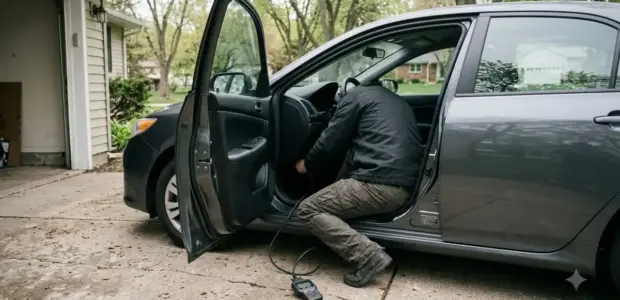

To learn how to use BimmerCode, connect a supported OBD adapter, select your vehicle in the app, and code one control unit at a time. As of November 3, 2026, the app supports BMW, MINI and Toyota Supra cars, and the steps below walk through each stage.
BimmerCode is a third-party app and is not connected to BMW AG. Not every adapter works on every model, so check compatibility before you buy the full version. Then learn how to use BimmerCode.
What BimmerCode Supports
BimmerCode supports BMW, MINI and the 2019 Toyota Supra, and its official site says it is in no way connected to BMW AG. Check your exact model on the compatibility page before buying the full version. The diagnostic companion app is explained in BimmerLink app instructions.
Before you learn how to use BimmerCode, confirm that your model and series appear on the supported list. Support depends on the exact vehicle, so a brand match alone is not enough.
Each platform has its own requirements for how to use BimmerCode on your device. The official site lists store ratings as of November 3, 2026 of 4.7 on iOS from 21,601 reviews and 4.8 on Android from 12,144 reviews.
- iOS 13 or later
- Android 6.0 or later
- Windows 10 or later
- macOS 12 or later, with separate downloads for Intel and Apple chip Macs
Choose a BimmerCode-Compatible OBD Adapter
BimmerCode works with Bluetooth, Wi-Fi, ENET cable and USB adapters, and the official list names 29 unique devices. Compatibility depends on the vehicle series, so match the adapter to your model before ordering. Owners of VW cars can read VCDS for Volkswagen group vehicles.
Pick the connection type first, then confirm the model on the official adapter list. That order prevents most wasted purchases when you plan how to use BimmerCode with a specific car.
| Connection | Examples from the official list | Setup notes |
|---|---|---|
| Bluetooth | OBDLink CX, OBDLink MX+, vLinker BM | Enable Bluetooth, disable Wi-Fi and use Airplane mode. Android users pair the adapter in system settings first. |
| Wi-Fi | vLinker BM Wi-Fi, MHD Universal Wi-Fi, bm3 ENET Wi-Fi | Enable Wi-Fi, disable Bluetooth and join the adapter’s own network. |
| ENET cable | ENET cable and Ethernet adapter | Listed for F, G and I series. Android 5 to 10 needs a static IP setting. |
| USB (DCAN) | DCAN USB cable | Listed for E and R series. Works on Android only, with USB-OTG support. |
The official site says not every adapter can be used for all supported vehicles. If you already own an adapter, check whether it appears in the list before you learn how to use BimmerCode with it.
How to Use BimmerCode: 6 Easy Steps
The steps below show how to use BimmerCode in practice, in the order the official guide follows. Each step notes the platform detail you need.
- Turn on the ignition. On G-Series cars, enter diagnostic mode by pressing the start button three times quickly, without the brake or clutch.
- Keep the engine off with the selector in P or no gear engaged, and set the parking brake. Turn off lights and heating, and make sure the head unit is in its original state.
- Disconnect third-party hardware on the CAN bus, such as tuning modules or camera systems. Revert any third-party CarPlay or navigation changes first.
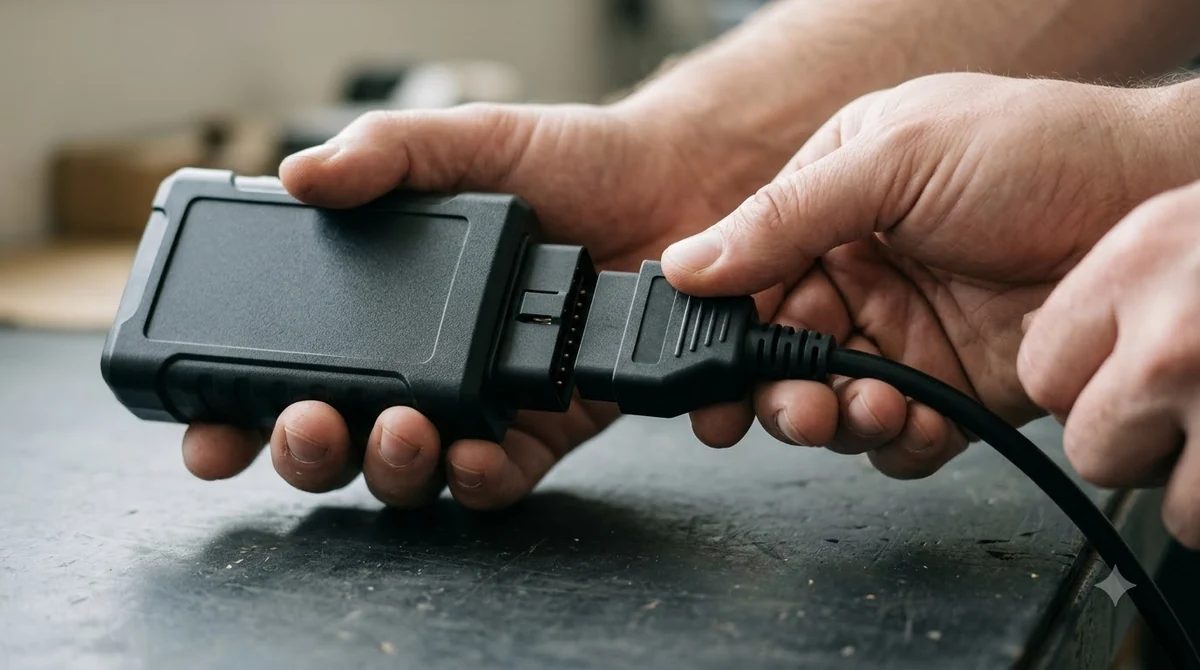
- Plug the adapter into the OBD port in the driver-side footwell. For Bluetooth, enable Bluetooth, disable Wi-Fi and use Airplane mode. For Wi-Fi, enable Wi-Fi, disable Bluetooth and join the adapter’s network.
- In the app, select the adapter type, tap Connect and grant the permissions it asks for. Then choose your vehicle type from the list and tap Connect again.
- Select a control unit, change the options you want and tap Code. Stay in Basic mode unless you have a clear reason to use Expert mode.
The BimmerCode quick start guide covers the connection steps for each platform in more detail. Keep it open during your first session, and repeat this sequence each time you learn how to use BimmerCode on a new car.

Basic Mode vs Expert Mode in BimmerCode
Basic mode lets you change popular options on a selected control unit, and the official guide says Expert Mode is generally not required. Expert mode is for experienced users, and the company does not provide support for it.
Both modes start the same way, with a control unit selected and options chosen. The difference is the extra Expert mode tap before any change, so learn how to use BimmerCode in Basic mode first.
| Criterion | Basic mode | Expert mode |
|---|---|---|
| How to start | Select the control unit, change the options and tap Code | Tap Expert mode before making changes, then follow the same steps |
| Who it suits | Popular options and first-time users | Experienced users only |
| Risk and support | Popular options are available here, so Expert Mode is generally not needed | The guide warns that incorrect use can cause serious issues with the vehicle, and the company does not provide support for it |
The official guide warns that incorrect use of Expert Mode can cause serious issues with the vehicle. If you are new to how to use BimmerCode, that warning alone is a reason to stay in Basic mode.
How to Undo a BimmerCode Change and Restore a Backup
BimmerCode keeps backups of control units, so you can return to an earlier state. On iOS, a backup is saved automatically each time a unit is read, and you restore the oldest one.
Check the restore route before your first change, because undoing a change is part of how to use BimmerCode safely. Each platform stores its backups in a different place.
On iOS, select the last, or oldest, backup in the list, tap Done and then tap Start coding. iOS backups also appear in the Files app under On My iPhone, then BimmerCode, then Backups.
On Android and desktop, the first read of a control unit creates a backup. Select the unit, open the menu in the top right and tap Recovery. Android backups can be exported or imported from the app’s Backup files menu. Learn how to use BimmerCode’s Recovery menu before you need it.
Knowing the backup menu before a problem starts saves time. Export your backups before you delete the app, because the official guide says they will be lost if you do.
What to Do When Coding Fails
If coding fails, disconnect and restart the device and adapter, reconnect carefully and restore the affected unit from backup. Errors that appear after coding usually clear when you turn the ignition off and back on. Ford owners have a similar tool in FORScan for Ford vehicles.
Most failures start with the connection, so check the adapter before blaming the app. If you are new to how to use BimmerCode, write down the control unit and option you changed before each session.
- Look for control units marked with a red dot, which show invalid data.
- Restore the affected unit from its backup before you try again.
- If the adapter LEDs stay off, the adapter or the OBD port pin may be faulty.
- After coding the instrument cluster, expect average consumption to reset and odd range or outside temperature readings for a while.
- If problems continue, contact support through the app settings.
Some units may also need the time reset or user settings restored in iDrive. Keep this checklist nearby whenever you learn how to use BimmerCode on a new model.
Frequently Asked Questions
Is BimmerCode made by BMW?
No. The official site says BimmerCode is “in no way connected to the company BMW AG.” It is a third-party app for coding BMW, MINI and Toyota Supra vehicles. Check your model on the compatibility page before you buy the full version.
Which Android version do I need?
Android 6.0 or newer, according to the official guide. On iPhones, iOS 13 or newer is required. Bluetooth adapters need system pairing first on Android, and USB adapters need USB-OTG support. Check this before you learn how to use BimmerCode on a phone.
Are my backups kept if I delete the app?
No. The official guide says the backups will be lost if you delete the app from your device. Export Android backups first through the Backup files menu, and check the Files app path on iOS before you remove anything.
How much does the full version cost?
The official pages checked for this article do not list a price, so no figure is given here. Check the App Store or Google Play listing for the current price before you buy, and confirm compatibility first.
Can I use an ENET cable on an F-series car?
Yes, according to the official adapter list, which includes an ENET cable option for F, G and I series. Other adapters are listed for different series, so check your exact model before ordering. Then learn how to use BimmerCode on that adapter before your first session.
Can I use BimmerCode on Windows or Mac?
Yes. The official site lists Windows 10 or later and macOS 12 or later, with separate macOS downloads for Intel and Apple chip Macs. Desktop backups use the same Recovery menu as Android, so learn how to use BimmerCode’s restore steps on your computer before your first change.
Before any change, confirm your exact model, back up the control unit and stay in Basic mode unless you have experience with Expert mode. Coding changes the car’s software, so a careful first session is the safest way to learn how to use BimmerCode without surprises.