
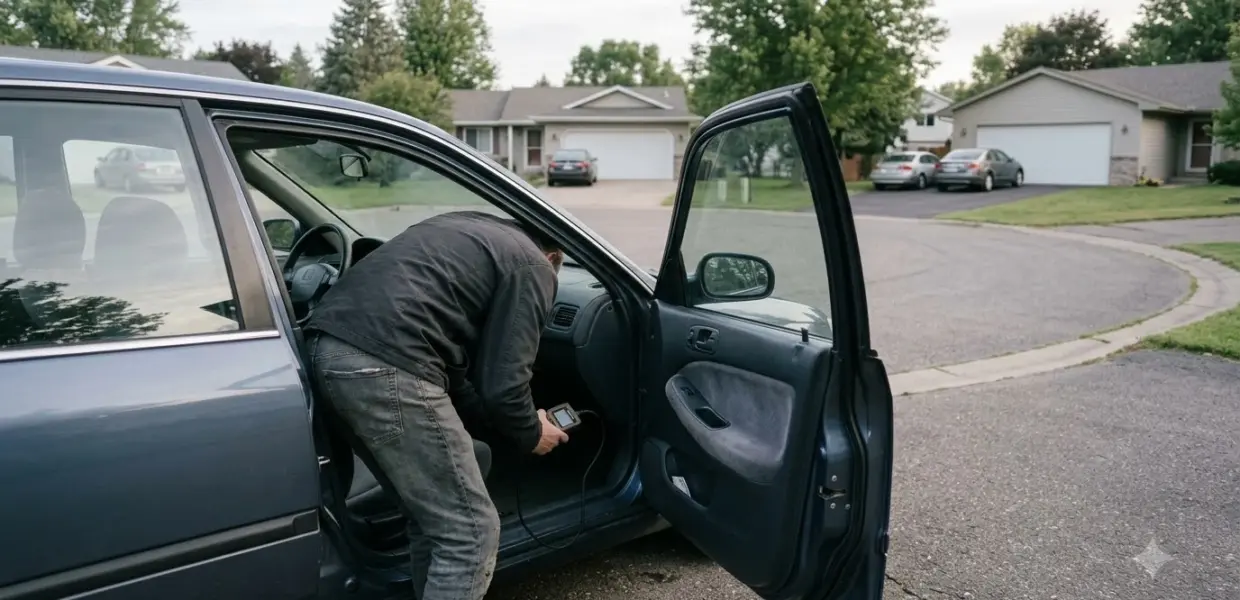

Learning how to use BAFX OBD2 readers takes three steps: plug the reader into the car’s port, pair it over Bluetooth, and connect from a compatible app. The official setup guidance covers Android.
BAFX’s official setup page points to Android and Torque, so check your phone platform before you buy an app. The steps below follow that Android setup as the reference.
How to Use BAFX OBD2 on Your Phone
Before you start learning how to use BAFX OBD2, confirm your phone runs Android, because the BAFX setup page covers Android and product listings describe the reader as Android only. The BAFX official setup video page says its first video shows how to get the reader running with Torque Pro or Torque Lite. It does not mention iOS.
No current iOS setup instructions were found for this reader. A third-party copy of the manual lists the same Android steps. Check the listing for your exact model before you buy apps, since older forum posts also say Torque was not available on iOS.
- An Android phone or tablet with Bluetooth turned on.
- Torque Pro or Torque Lite, the apps the official setup video uses.
- The reader and its cable, kept within reach of the driver’s seat.
Plug the Reader Into Your Car’s OBD2 Port
The OBD2 port is usually under the dashboard near the driver’s seat, according to AutoGuide’s OBD2 scanner guide. AutoGuide notes the port might sit slightly left or right of the steering column, so check your vehicle manual for the exact spot before you search.
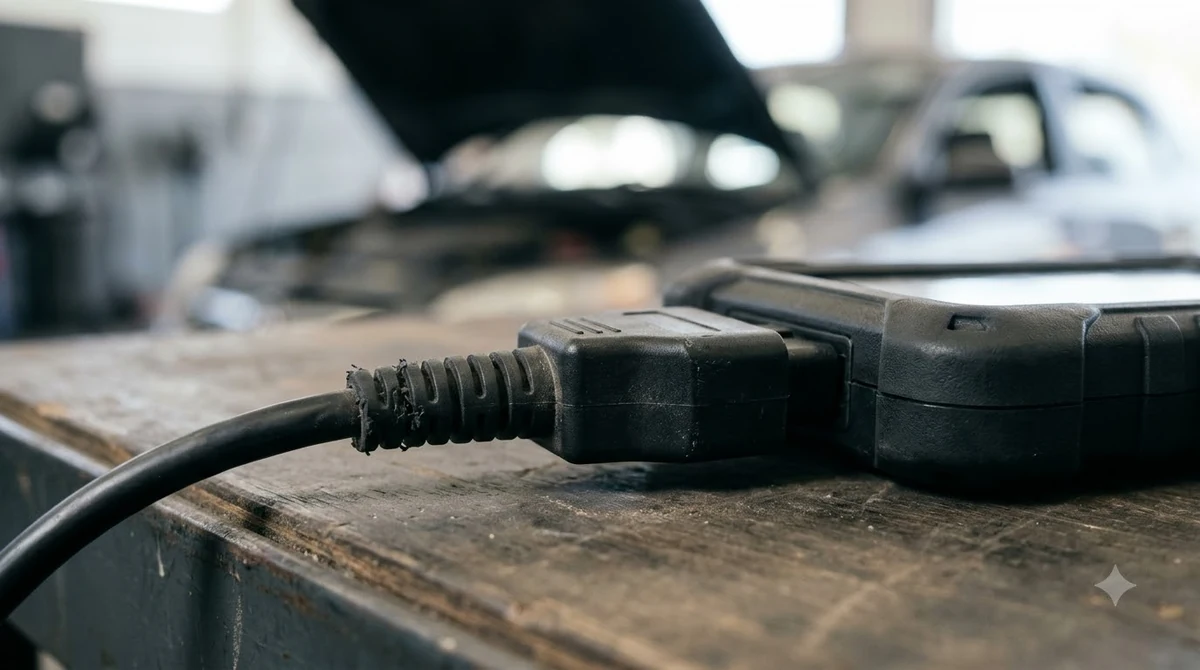
Once you find the port, push the connector in fully and check that it sits flat against the port housing. A solid connection is the first part of how to use BAFX OBD2 correctly, so follow these steps:
- Plug the reader into the OBD2 port under the dashboard.
- Turn the ignition on or start the engine, as the third-party manual copy describes.
- Keep the reader connected while you pair it in the next step.
Pair the Reader Over Bluetooth
Pair the reader in your phone’s Bluetooth settings, then enter the PIN from the manual. Pairing is the second part of how to use BAFX OBD2, and it needs the right PIN. A third-party copy of the manual lists 1234 or 0000 as common PINs, so try 1234 first, then 0000. Your own manual is the final word on how to use BAFX OBD2 for your unit.
- Open Bluetooth settings on your phone and select the reader from the nearby devices.
- Enter the PIN, trying 1234 and then 0000 if your manual is not at hand.
- Open the app and connect to the reader from its device list.
Connect the App and Read Trouble Codes
Once the reader is paired, open the app and connect, and the app shows the trouble codes the reader pulls from the car. This connection step is the core of how to use BAFX OBD2 for diagnosis. The BAFX setup video walks through the app connection, so watch it before you troubleshoot on your own.
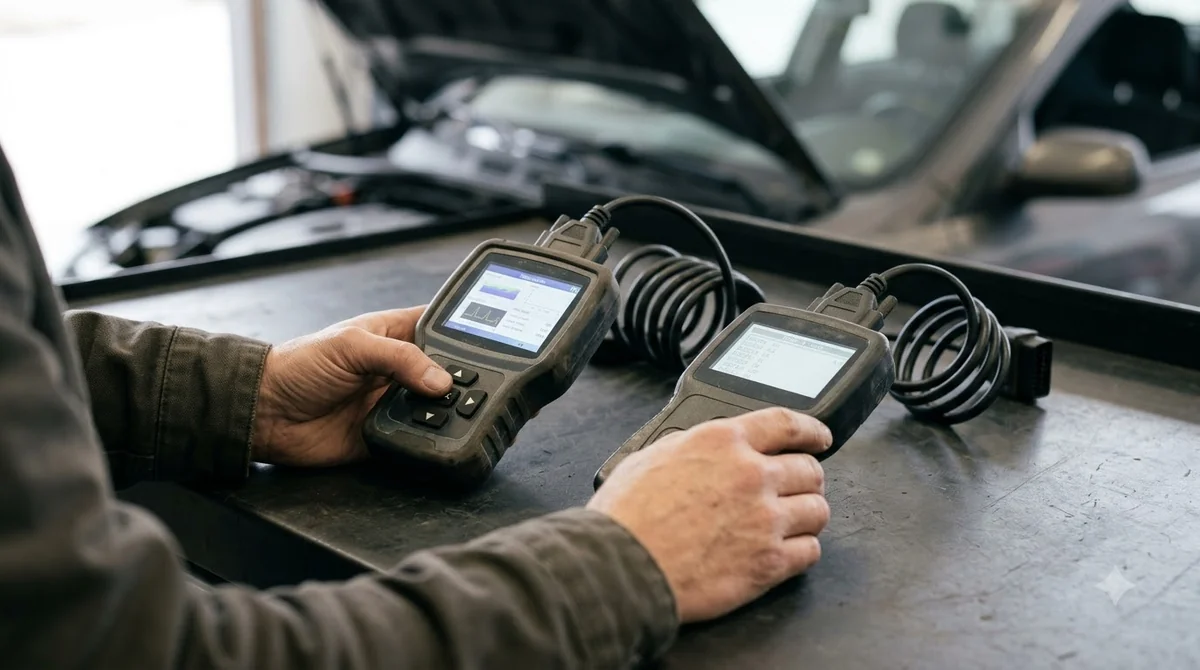
A trouble code tells you what the car detected, not which part failed. Once you know how to use BAFX OBD2 to read it, write down the details a shop will ask for before you buy parts:
- The exact code number, such as P0301.
- Your vehicle’s year, make and model.
- Whether the warning light is steady or flashing.
What the Reader Can and Cannot Tell You
Understanding how to use BAFX OBD2 also means knowing its limits. A BAFX reader reads the trouble codes the car has stored and passes them to the app. It does not identify the failed part on its own, so a code is a starting point for diagnosis rather than a final answer.
AutoGuide recommends consulting a professional mechanic if you are unsure what a code means. That advice matters most for codes tied to fuel, ignition or emissions, where the same code can have several causes.
- Good for: confirming a code number and deciding whether a shop visit is urgent.
- Not good for: naming the exact part to replace without a diagnosis.
- Not good for: judging a repair that a shop has not confirmed.
When you practice how to use BAFX OBD2 and the app lists more than one code, write every code down before you change anything. The first code you see is not always the root cause, and a written list gives a technician the full picture when you book a visit.
Clear Codes Only After the Fix
Clearing codes is optional, and AutoGuide says you can clear them once you have fixed the problems causing them. Knowing how to use BAFX OBD2 for clearing matters only after the repair. Clearing a code before the repair erases the record, but the underlying cause stays. Not every reader can clear codes, so check the feature list for your model before you rely on it.
Keep the reader and the phone within Bluetooth range while you troubleshoot, and avoid moving the cable during pairing. A loose connection at the port can look like a pairing fault, so reseat the connector first.
Common Setup Problems and Fixes
Most problems with how to use BAFX OBD2 come from the phone platform, the PIN, or a pairing that never finished. Each one has a direct check you can run before you contact the seller.
| Problem | Likely cause | Fix |
|---|---|---|
| The app cannot find the reader | Bluetooth is off or the reader is not paired | Turn on Bluetooth, pair the reader, then retry in the app |
| Pairing fails with the common PIN | Your unit uses a different PIN | Try 1234, then 0000, then check your manual |
| Connection fails after pairing | Ignition is off or the engine is not started | Turn the ignition on or start the engine, then reconnect |
| iPhone does not connect | No iOS setup is documented for this reader | Use an Android device, as the official setup page shows |
If none of these fixes work, confirm the reader and app match your phone platform before you buy a replacement or try the setup again.
Who Should Pick This Reader
A BAFX reader fits an Android owner who wants to learn how to use BAFX OBD2 with a documented app setup. The official setup video covers that path directly, so setup is less guesswork than with a reader that has no published instructions.
It fits less well for iPhone owners, since no current iOS setup is documented for this reader. If you need an iPhone app, choose a reader whose listing and setup page name iOS support before you buy. BAFX sells several models under similar names, so match the model number on the box to the listing and the setup page before you follow any steps.
Related Guides
Frequently Asked Questions
Can I use a BAFX OBD2 reader with an iPhone?
The official setup page covers Android only, and product listings describe the reader as Android only. No current iOS setup instructions were found, so check the listing for your model before you buy.
Where is the OBD2 port on most cars?
It is usually under the dashboard near the driver’s seat, according to AutoGuide. The exact spot varies by vehicle, so check your owner’s manual for the location.
What PIN does a BAFX reader use?
A third-party copy of the manual lists 1234 or 0000 as common PINs. Try those first, and use the PIN in your own manual if they fail.
Can a BAFX reader clear codes?
It depends on the model and the app. Not every reader can clear codes, so check the feature list for your unit. Clear codes only after the repair, and write them down first.
Does the reader need its own app?
Yes. Learning how to use BAFX OBD2 starts with the app. The reader connects through a phone app, and the official setup video uses Torque Pro or Torque Lite. Install the app before you pair the reader so the connection step is ready.
Do I need the engine running to connect?
The third-party manual copy says to turn the ignition on or start the engine. Keep the reader plugged in while you pair and connect, so the link does not drop mid-setup.
Should I clear codes right after reading them?
No. AutoGuide says clearing is optional and should follow the repair. Clearing first can erase the code without solving the cause, so fix the issue before you clear it.
Learning how to use BAFX OBD2 on Android is simple: plug in, pair, connect, and read the codes. If pairing fails, check your phone platform and the PIN before you buy another device.