
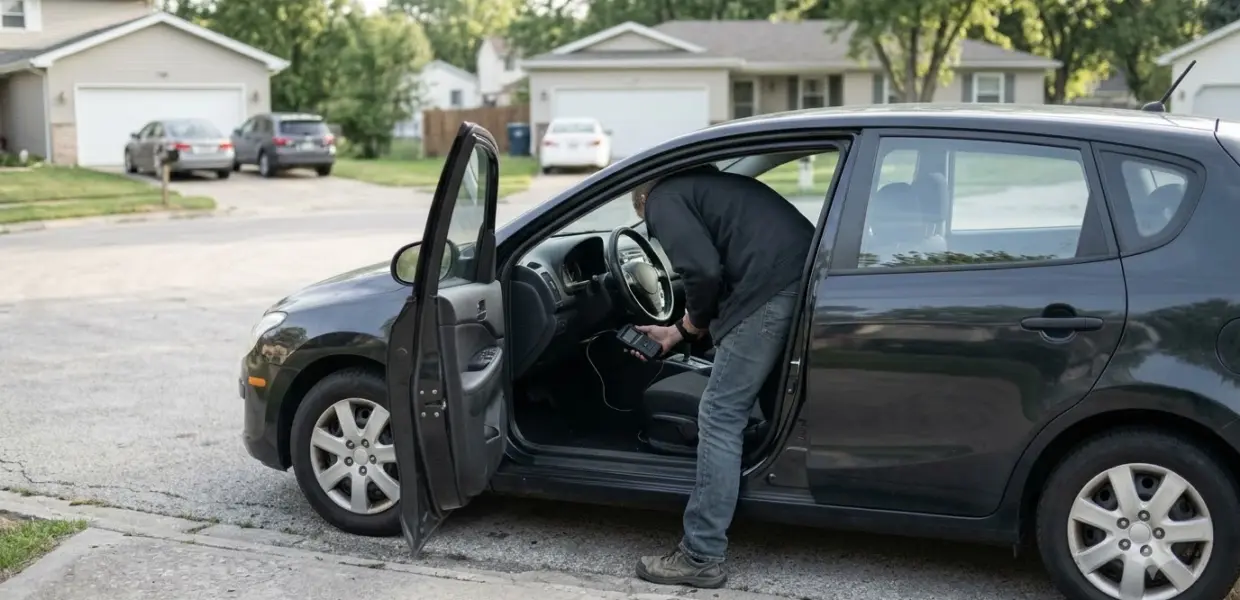

How to use Torque Lite comes down to four steps: install the free Android app, pair a Bluetooth OBD2 adapter, choose Bluetooth in the app, and connect to your car. The order matters, because most connection problems start with a skipped step.
Torque Lite is the free, ad-supported version of the Torque OBD2 app, which runs only on Android. It is meant mainly for testing the app before you decide whether Torque Pro is worth paying for. OBDAdvisor adds that Lite has not been updated on Google Play since 2018, so treat it as a free test and not a long-term tool.
What Torque Lite Is
Torque Lite is the free, Android-only version of the Torque OBD2 app, built mainly for trying the app before you buy Torque Pro. Understanding how to use Torque Lite starts with knowing what it covers and what it leaves out.
The app connects to your car through an OBD2 adapter and shows the readings on your phone. The official Torque website describes the app as a way to view live OBD engine data on an Android phone, with customizable dashboards and fault code reading among its features. That page covers the Torque app as a whole, so the Google Play listing is the best place to confirm what Lite includes.
A 2026 comparison page on OBDAdvisor calls Lite the free, ad-supported version of Torque Pro. The same page notes that both versions are Android only, with no iOS or Windows release.
Before you learn how to use Torque Lite, confirm that your phone runs Android, because an iPhone cannot run it. An iPhone owner needs a different OBD2 app that supports iOS, and the adapter must work with that app too.
What You Need Before You Start
You need an Android phone with Bluetooth, the Torque Lite app from Google Play, and a Bluetooth OBD2 adapter that plugs into your car’s OBD-II port inside the cabin.
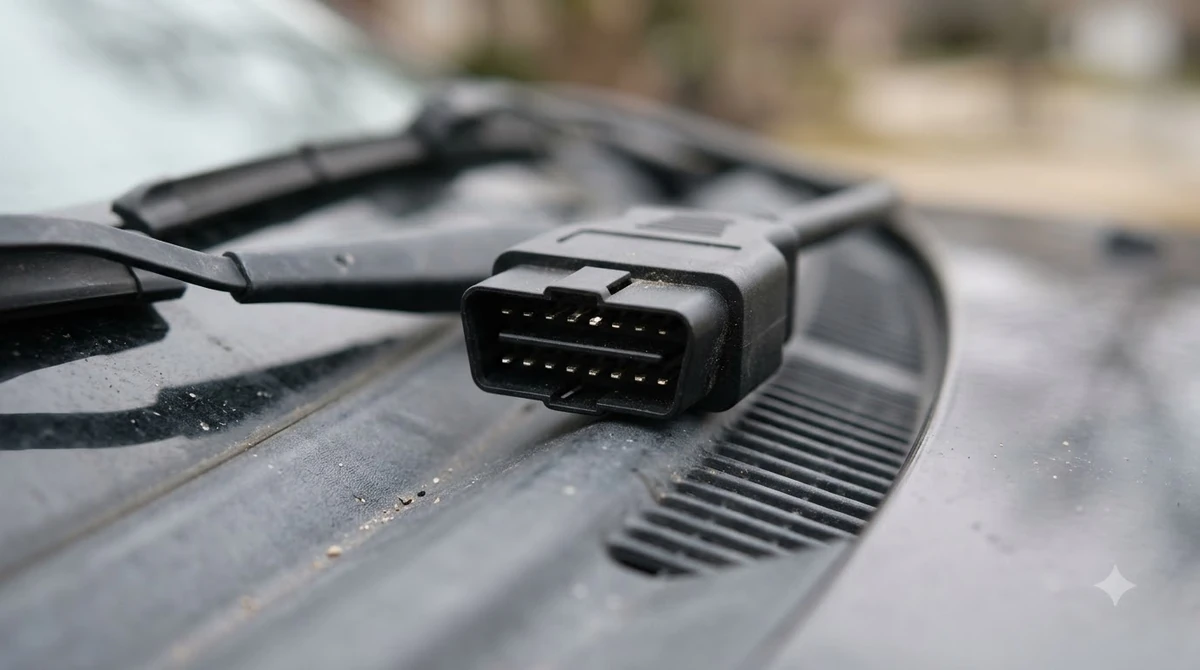
- An Android phone with Bluetooth turned on
- Torque Lite installed from Google Play
- A Bluetooth OBD2 adapter, with its device name noted from the box or manual
- A car with an OBD-II port, which the adapter needs to reach the engine data
Before you start, read the adapter’s box or manual to confirm its connection type. The adapter must be Bluetooth for the steps below to match what you see on screen. A Wi-Fi-only adapter will not appear in your phone’s Bluetooth list.
Adapter choice also matters for how to use Torque Lite. The OBDAdvisor comparison pairs Lite with Veepeak OBDCheck BLE+ or Mini adapters as examples, so those models are a known starting point. Our guide to Bluetooth adapters that pair with phone apps compares adapters by platform.
How to Use Torque Lite: Setup Steps
To use Torque Lite, pair the adapter in your phone’s Bluetooth settings first, then select Bluetooth as the connection type inside the app. Most adapter manuals describe the same order, so follow it exactly.
- Turn the ignition to the on position, without starting the engine, so the adapter receives power.
- Open your phone’s Bluetooth settings, scan for devices, and pair with the adapter. Adapter guides list names such as VEEPEAK or OBDLink LX, depending on the model.
- Open Torque Lite, go to Settings, and open the OBD2 adapter settings.
- Set the connection type to Bluetooth.
- Choose your paired adapter from the device list.
- Close the app completely, reopen it, and start the connection.
Following these steps gives you the core of how to use Torque Lite. Menu names can shift between app versions, so match the labels to what appears on your screen. If the connection does not start, the troubleshooting section below lists the usual causes.
When you learn how to use Torque Lite, close the app before you unplug the adapter, so the connection ends cleanly. This small habit is part of how to use Torque Lite without leaving a stale session behind.
Reading Live Data and Fault Codes
Once you know how to use Torque Lite, the app shows live engine readings from the adapter, and its basic dashboard lets you choose which gauges to watch. Live data is the main reason most people install it.
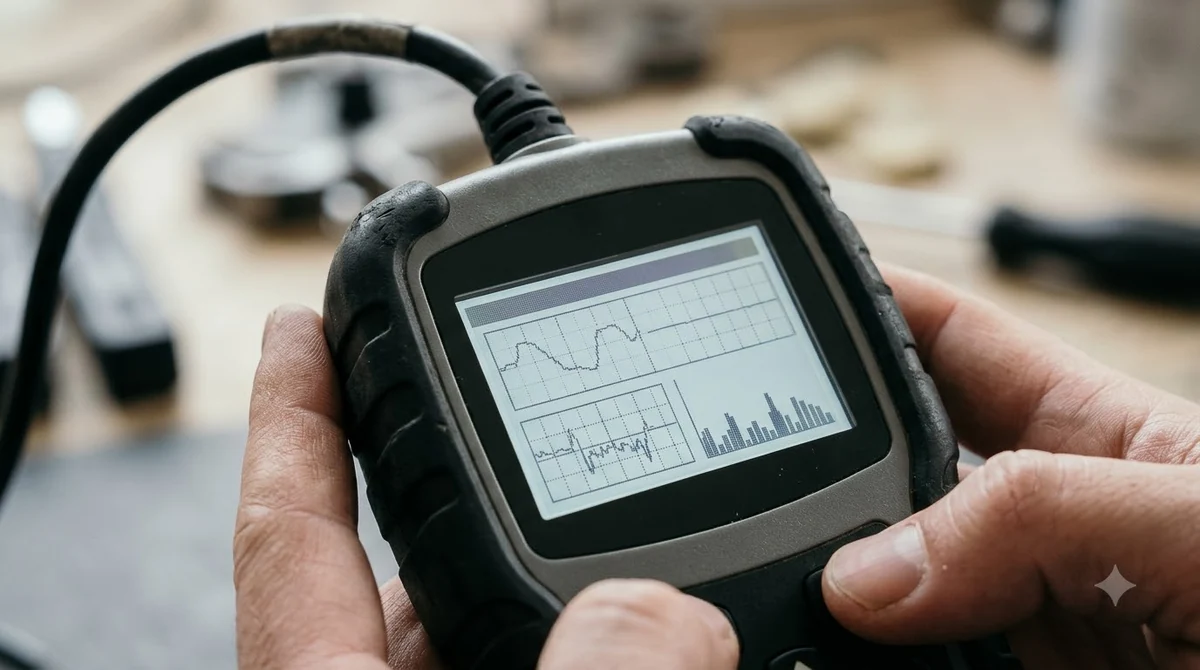
The OBDAdvisor comparison lists live data graphing as a Pro feature, so Lite shows readings as numbers on its dashboard rather than as charts. If you rely on graphs to spot a problem, that gap matters.
The official site lists fault code reading for the Torque app. The 2026 comparison says Lite reads and clears codes, while a TechRounder guide lists clearing codes as a Pro feature. The sources disagree, so check the Google Play listing before you rely on Lite for a repair.
What you see depends on the car and the adapter. Some vehicles expose fewer readings over the OBD-II port, so a gauge may stay empty even when the app is connected correctly. A blank reading reflects a limit of the car or adapter, not necessarily a fault in the app.
Fuel tracking also differs, which matters when you decide how to use Torque Lite on a diesel car. The comparison lists Lite as gasoline only, while Pro covers gasoline and diesel, so a diesel owner should check the Pro version first.
Torque Lite vs Torque Pro
Torque Lite is the free, ad-supported version for testing, while Torque Pro is the paid version with a wider feature set, including graphing and trip tracking.
Learning how to use Torque Lite first is a low-cost way to test your adapter. Lite is enough to confirm that the connection works and that the readings you need appear on screen.
| Feature | Torque Lite | Torque Pro |
|---|---|---|
| Price | Free | Paid, check Google Play for the current price |
| Ads | Yes, per a 2026 comparison | None listed in the same comparison |
| Live data graphing | Not listed | Included |
| Dashboards | Basic | Custom |
| Fuel tracking | Gasoline only | Gasoline and diesel |
| Clearing trouble codes | Listed as available in a 2026 comparison | Included |
| GPS trip tracking | Not listed | Included |
A TechRounder guide lists the Pro extras, including 0-60 timing and GPS trip tracking, and advises learning how to use Torque Lite before paying for Pro. The same guide notes that many users report bugs in Lite, so expect some rough edges on the free version.
OBDAdvisor, updated in May 2026, says Lite has not had a Google Play update since January 2018 and calls it effectively abandoned. A third-party listing shows a newer version, and the Google Play page could not be read for this guide, so check the update date there before you install.
Common Torque Lite Connection Problems
Most connection failures come from skipped setup steps or from another Bluetooth device holding the adapter, so knowing these causes helps you avoid the most common dead ends when you learn how to use Torque Lite.
- Setup steps done out of order, which adapter guides cite as the most common cause
- Another Bluetooth device, such as a headset or a car stereo, connected to the adapter
- An old pairing that needs to be removed from the Bluetooth list and paired again
- A phone that has not been restarted since the Bluetooth problem began
If none of these fixes work, check the adapter’s manual for its exact device name and compatibility. Other phone apps are covered in BimmerLink setup for BMW and MINI, and a Windows and Android option is in DashCommand profile and dashboard setup.
Frequently Asked Questions
Is Torque Lite free?
Yes. Torque Lite is free, but a 2026 comparison page calls it ad-supported, and Torque Pro is the paid version. Prices and ad terms can change, so check the Google Play listing for the current details before you install.
Does Torque Lite work on iPhone?
No. The Torque app runs only on Android, according to the official site. An iPhone owner needs a different OBD2 app that supports iOS, and the adapter must work with that app. Check each app’s listing and compatibility notes before buying an adapter.
Why won’t Torque Lite connect to my adapter?
The most common causes are skipped setup steps, another Bluetooth device holding the adapter, or an old pairing. Restart your phone, remove the adapter from the Bluetooth list, pair it again, and then choose Bluetooth in the app. If it still fails, check the adapter’s manual.
Can Torque Lite clear check engine codes?
A 2026 comparison page says Lite can read and clear codes, but a TechRounder guide lists clearing as a Pro feature. Because the sources disagree, check the Google Play description before you rely on Lite for a repair. For a clear answer on how to use Torque Lite for codes, read the current feature list first.
Is Torque Pro worth the price?
That depends on what you need. Lite covers basic live data and testing, while Pro adds graphing, custom dashboards, diesel fuel tracking, and trip tracking. If you only want to learn how to use Torque Lite, the free version is enough, and you can upgrade later if a feature is missing.
Before you pay for Torque Pro, confirm that your adapter works with the app and that Lite already shows the readings you need. Testing the connection on the free version first is the lowest-risk way to learn how to use Torque Lite.