
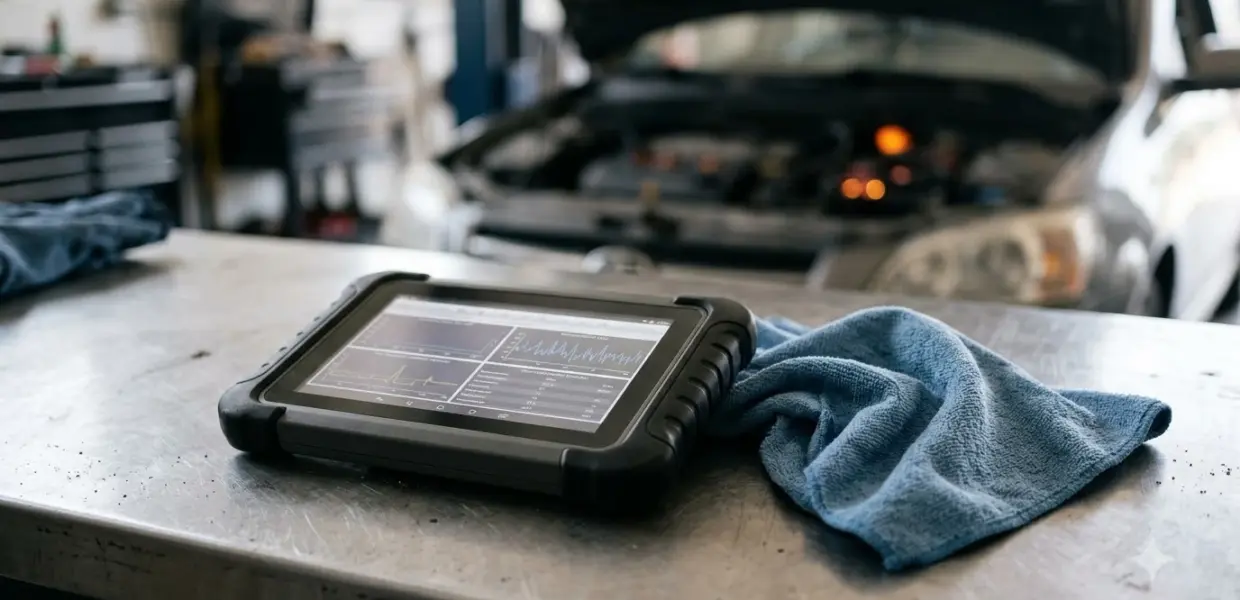

Learning how to use Launch X431 Pro Elite takes five steps: activate the tablet with its 12-digit serial number, log in, update the software, connect it to the car’s OBD-II port, and run a scan.
Setup depends on Wi-Fi and a valid account, and most of the frustration comes from skipped steps. If the tablet will not reach the car, check the cable and the ignition before anything else.
What the Launch X431 Pro Elite Includes
The Launch X431 Pro Elite is an 8-inch Android tablet diagnostic tool with a 12-digit serial number and two years of free software updates. The spec list below comes from a LAUNCH X431 PRO Elite setup walkthrough on a third-party repair blog, not from LAUNCH’s own datasheet.
| Specification | Stated value |
|---|---|
| Screen | 8-inch |
| Operating system | Android 10 |
| Battery | 3.7V/6000mAh |
| Serial number | 12 digits, printed on the back of the unit |
| Free software updates | Two years |
| Special functions | 32 or more |
Check these figures against the label on your unit or the official product page before you rely on them when you learn how to use Launch X431 Pro Elite. The same source lists the storage figures with the labels swapped, so this guide leaves storage out. To compare tablet tools with other types, see our guide to the bidirectional scanners for deeper diagnostics.
How to Use Launch X431 Pro Elite: Setup and Activation
Learning how to use Launch X431 Pro Elite starts with three setup stages: charge the tablet and join Wi-Fi, activate the app with the serial number, then log in and update the software. Finish each stage before moving on, because the later steps depend on the earlier ones.
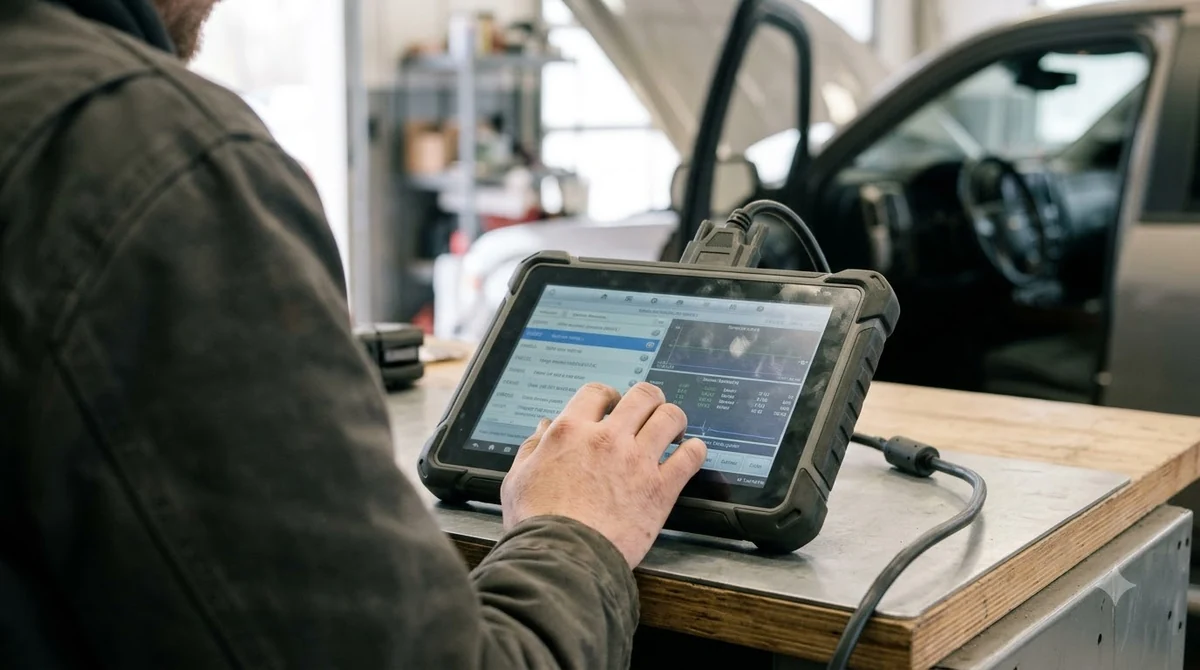
Charge the Tablet and Connect to Wi-Fi
Charge the tablet fully before its first use. Then join a Wi-Fi network, because the app download in the next stage needs an internet connection.
- Turn the tablet on and tap Setting on the home page.
- Select Network & internet, then WiFi.
- Connect to an available network and enter its password.
Activate the App With the Serial Number
Activation starts from the home screen and needs the 12-digit serial number printed on the back of the unit. Keep the unit in front of you so you can read the number exactly.
- Slide up on the home screen and select APP Init.
- Enter the 12-digit serial number and tap OK.
- Start the download and installation, then tap Open the application when it finishes.
- Tap Confirm to give the app access to the phone, camera, location, storage and microphone.
- Allow display over other apps, then tap the return button on the taskbar to reach the main menu.
Log In and Update the Software
Software Update appears on the main menu once you are logged in. If you cannot remember your password, the login screen has a recovery option.
- Tap Login in the top-right corner.
- Enter your username and password, then tap Login.
- If you forgot the password, tap Login, then Retrieve password.
- Tap Software Update on the main menu, then tap Update to update all supported software.
Software updates are free for two years according to the same spec list. Run the update before each job so the vehicle coverage matches the current software.
Connect the Tablet to the Vehicle
When you learn how to use Launch X431 Pro Elite on a car, connect the diagnostic cable from the tablet to the vehicle’s OBD-II port, push both ends in fully, and turn the ignition on before you start a diagnosis. A loose connector or an ignition that is off causes most of the connection errors covered later in this guide.
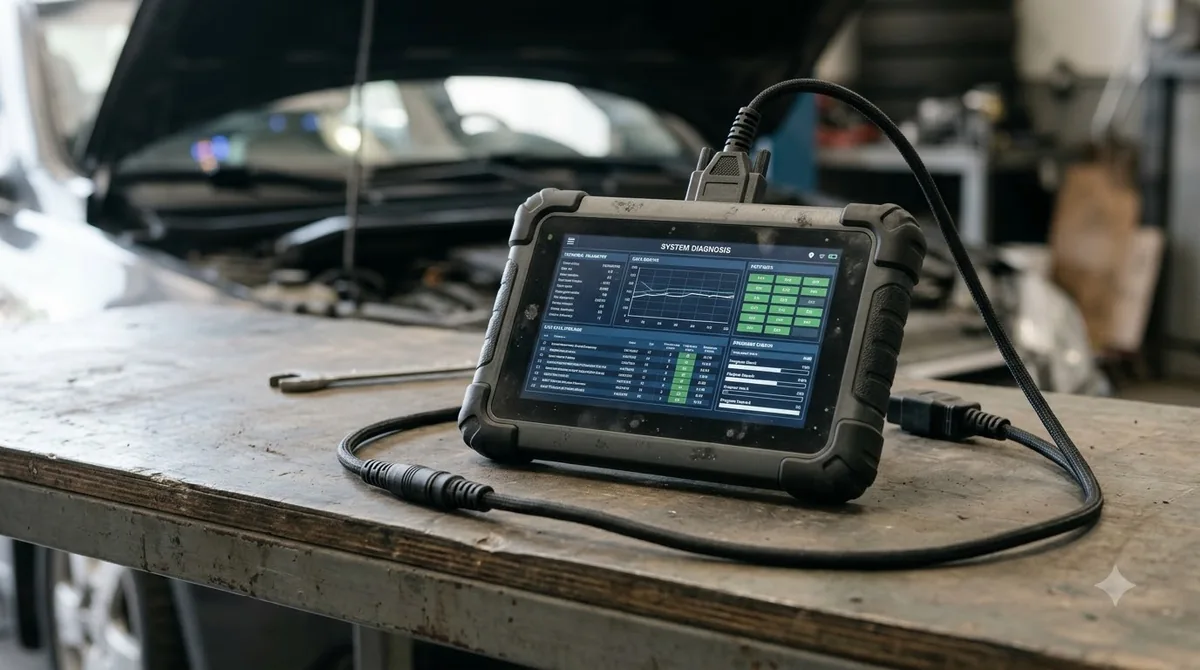
- Locate the OBD-II port, which is usually under the dashboard on the driver’s side.
- Plug the cable into the port and into the tablet, and check that each end is firmly seated.
- Turn the ignition on and wait for the tablet to recognize the vehicle.
- Open the diagnostic app and select the vehicle you are working on.
Do not plug or unplug the cable while the engine is running. Keep the cable away from belts, fans and hot exhaust parts, and route it so it cannot snag while you work. Accessories for key programming and Bluetooth adapters use their own connection methods, which this section does not cover. Autel’s wired MX808 tablet uses a different connection routine, described in the Autel MX808 cable and VIN steps.
Run a Diagnostic Scan and Read the Results
A scan on Launch X431 Pro Elite starts with the vehicle details and ends with the codes the tablet reports for each system. Learning how to use Launch X431 Pro Elite for a scan is easier when you follow the same order each time. Enter the year, make and model first, because the app loads diagnostic options based on that selection.
- Select the vehicle’s year, make and model.
- Choose a full-system scan if the app offers one, or select only the modules you want to check.
- Write down each code, its description and the module that reported it.
- Review live data or freeze-frame data if you need more context on when the fault appeared.
Record codes before you clear them. Clearing a code also erases the freeze-frame data that helps explain when the fault happened. A code only tells you which system reported a fault, not which part failed, so fix the cause first, clear the code, and run the scan again to confirm the result. Menu labels can change with firmware, so match the wording on your screen to the manual for your model. A handheld alternative is covered in Topdon handheld scanner walkthrough. A tablet from another brand is covered in Autel MaxiCOM MK808 first scan steps.
Fix Common Connection and Language Errors
The setup guide lists three common errors: a communication error with the vehicle ECU, a failure to enter the vehicle ECU system, and a language mismatch. Each has a short list of checks, and you should work through them in the order shown.
| Message | What to check | What to do next |
|---|---|---|
| Communication error with the vehicle ECU | The connector is seated and the ignition is on | Send the vehicle’s year, make, model and VIN through Feedback |
| Failed to enter vehicle ECU system | The vehicle has this system, the connector is attached, and the ignition is on | If every check passes, send the same details through Feedback |
| Language mismatch | English is the default; confirm the system language | Change the system language, then download the matching software from the update center |
The guide does not say how quickly Feedback is answered, so plan for the vehicle to wait while you sort out the problem. If the tablet stays stuck, a simpler reader may do the job, as our guide to choosing an OBD2 scanner explains. Another tablet that starts with power, update and cable is covered in these xTool X100 PAD setup and update steps.
When to Factory Reset the Tablet
Use a factory reset only when the fixes above fail, because it erases all data on the tablet. A reset is the last step in learning how to use Launch X431 Pro Elite, not the first. Before you start, write down your login details and the serial number, since you will need both to activate the app again.
- Tap Setting on the home page.
- Select System, then Advanced, then Erase all data (factory reset).
- Tap Erase all data and wait for the tablet to restart.
- Repeat the Wi-Fi, activation and login steps from the start of this guide.
Frequently Asked Questions
Do I need Wi-Fi to use the Launch X431 Pro Elite?
You need Wi-Fi at least during setup, because the app download and installation follow the serial number step. The setup guide lists Wi-Fi as the first step. Whether a routine scan needs an internet connection is not confirmed by the sources reviewed here, so check your manual for that.
Where is the 12-digit serial number?
The serial number is printed on the back of the unit, and the activation screen asks for all twelve digits before you can learn how to use Launch X431 Pro Elite past setup. Enter it exactly as printed, then tap OK to start the download.
How long are software updates free?
The spec list gives two years of free software updates. After that period, check LAUNCH’s current terms before you buy or renew any paid update. Run the update from the main menu while the free period is active.
What do I do if I forgot my password?
Tap Login on the login screen, then tap Retrieve password. The setup guide describes this route, but the reset steps themselves may differ by firmware, so follow the prompts that appear on your screen.
Should I clear codes right after reading them?
No. When you learn how to use Launch X431 Pro Elite for repairs, write down every code and its freeze-frame data first. Clear codes after the repair, then run the scan again to confirm that the fault does not return.
Is the PRO Elite the same as the PROS Elite?
Not necessarily. Search results list both names for different LAUNCH models, and the steps in this guide may not match both. Check the model printed on your device before you follow any step.
The steps here come from a third-party setup guide, not LAUNCH’s own manual, so menu names may differ on your firmware. Check the model label on your device and the manual that matches it before you rely on any step of how to use Launch X431 Pro Elite during a repair.