
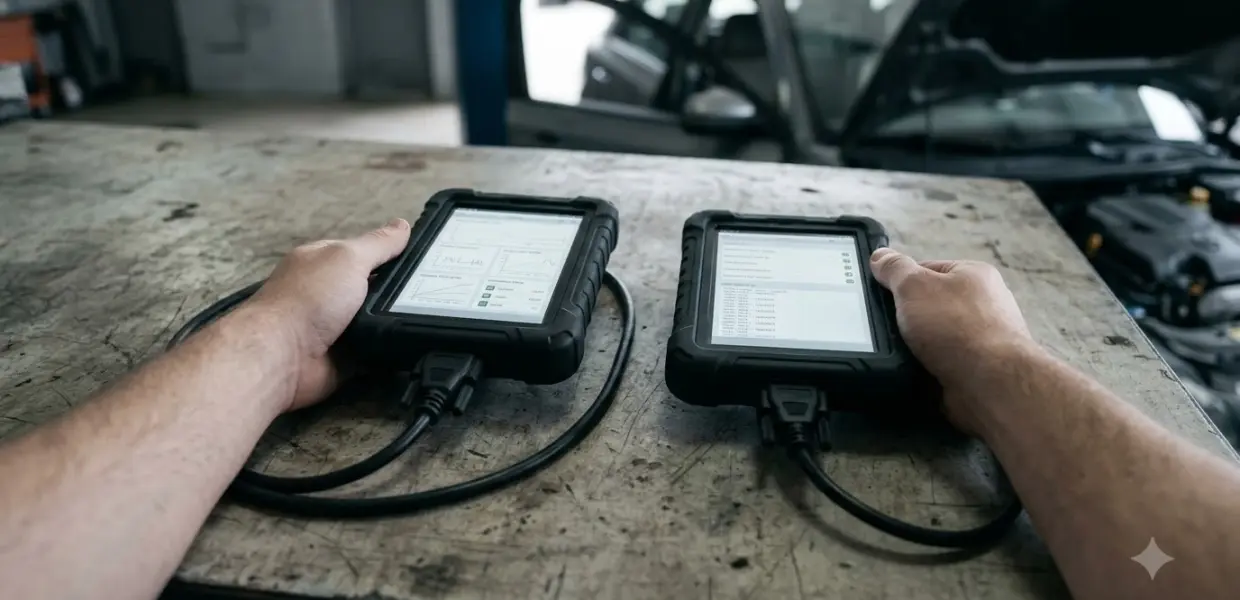

To learn how to use snap on verus, connect the tool to the vehicle, select the car, and run a full code scan. The Snap-on VERUS Edge, model EEMS330W, is a tablet-style diagnostic tool that Snap-on describes as offering one-touch scanning.
The steps below follow Snap-on’s product description. Menu names can differ between Verus models, so check the manual that came with your unit before you press any button.
What the Snap-on Verus Does
Knowing how to use snap on verus starts with its basic job: the Snap-on Verus family reads and clears vehicle trouble codes. Snap-on’s product page for the VERUS Edge lists support for all 10 modes of Global OBD-II, which covers the standard emissions-related data a scanner can request from the vehicle.

The VERUS Edge is more than a code reader. Snap-on’s VERUS Edge product page lists a scope and meter, guided component tests, and a data manager for service records. Compare the functions below before you decide which features you need to learn first.
| Function | What Snap-on lists | Why it matters |
|---|---|---|
| Full vehicle scan | One-touch full vehicle code scan and clear | One scan covers all available modules |
| OBD-II support | All 10 modes of Global OBD-II | Standard emissions data on supported vehicles |
| Records | Data manager for vehicle records and repair notes | Keeps a history for each car |
| Connection | Wireless scanning and Wi-Fi, plus a 9 ft USB cable | Flexible setup in the service bay |
Before You Connect
Anyone learning how to use snap on verus should start with a clean setup, because most wasted time comes from the connection rather than the scan itself. Check these points before you plug anything into the car, so a failed connection is not mistaken for a tool fault.
- Confirm the car has an OBD-II data link connector, usually under the dashboard on the driver side.
- Charge the tool or confirm it is connected to power, and let it reach the home screen.
- Check the cable for cuts, bent pins and a firm fit at both ends.
- Note the vehicle year, make, model and engine, so you can select the correct vehicle.
Snap-on’s product page notes that the VERUS Edge powers up from ready mode in about five seconds, so you do not need to wait long before you start.
If the vehicle does not appear in the selection list when you try how to use snap on verus on a new car, recheck the year, make, model and engine before you assume the tool is faulty. The tool can only run functions that cover the car, so a missing vehicle is a coverage question as much as a setup question.
How to Use Snap on Verus for a Full Scan
The main job is a full scan. Snap-on describes a one-touch full vehicle code scan and clear for all available vehicle modules, and you select the vehicle once for all diagnostic functions. Follow these steps in order.
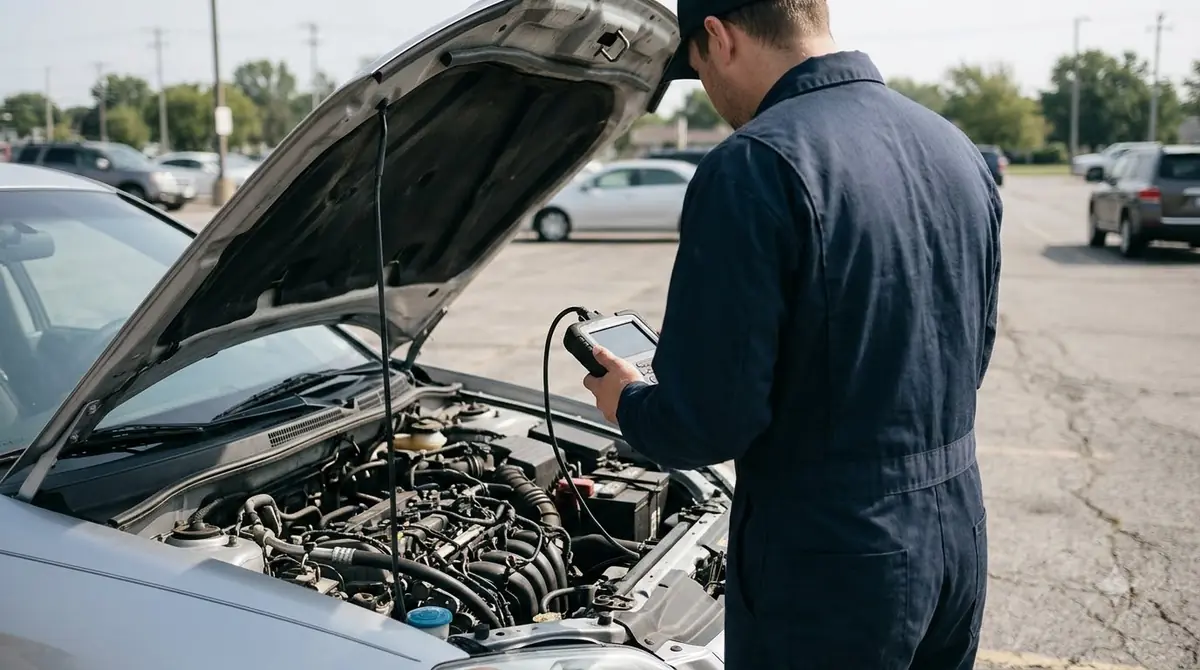
- Connect the tool to the vehicle’s OBD-II port using the method your manual describes for your unit.
- Select the vehicle on the tool, following the ignition instructions in your manual.
- Choose the one-touch full vehicle scan and wait for it to finish before you touch the cable.
- Read each code exactly, then write it down before you clear anything.
When you work out how to use snap on verus on a real repair, treat the scan as the start of the diagnosis, not the end. If the scan shows codes but the car drives normally, use the codes as a list of things to test rather than a finished answer. Clearing codes should come last. If the light stays on after a repair, see this guide to resetting the check engine light. A code cleared before a repair removes the record the next technician needs, so keep the written list even after the scan is complete.
Global OBD-II is a standard set of modes that many vehicles support, and any snap on verus scan on one of them starts from that standard data. It does not replace the manufacturer’s own system data, so a scan may show fewer details on some cars than a dealer tool would.
Save and Share the Results
For anyone learning how to use snap on verus day to day, the VERUS Edge data manager can store vehicle records, customer data, fault codes and repair notes. Saving each scan turns a one-time reading into a history you can compare later. Saving is part of how to use snap on verus well, not an extra step at the end.
A saved session is the best proof that you know how to use snap on verus properly, and it is most useful when the same car returns. Comparing the new scan with the saved one shows whether a code is new, repeated or already cleared, which is hard to judge from memory.
- Save the scan under the vehicle you selected, so each record stays with the right car.
- Add a short repair note after each step, such as the part replaced or the test performed.
- Write down or photograph the code list if you need to share it with a customer or another shop.
Keep the records organized by vehicle when you learn how to use snap on verus for shop work. A clear history makes it easier to see whether a fault returns after a repair, and it gives you a record to show the customer if the question comes back later.
Common Connection Problems and Scope Limits
When you practice how to use snap on verus, most connection failures come from the cable, the port or the power setup. Check those first, then consult the manual, because the product page does not give step-by-step connection instructions.
- A loose cable at the tool or the port is the most common cause.
- If you use the wireless link, confirm it is set up as your manual describes before you scan.
- A tool that is not charged may shut down during a scan.
- Some functions are not available on every model, so confirm the feature list for your unit.
This guide on how to use snap on verus does not cover repair procedures. A code tells you which system reported a fault, and the repair still needs testing by a qualified technician.
Related Guides
Frequently Asked Questions
Does the Snap-on Verus read codes on every car?
The VERUS Edge supports all 10 modes of Global OBD-II according to Snap-on, so it reads standard OBD-II data on vehicles that support those modes. Some manufacturer-specific systems may need a deeper scan, so check the feature list for your model before you buy or rely on a result.
Do I need the manual to learn how to use snap on verus?
Yes, for model-specific menu names and step-by-step connection instructions. Snap-on’s product page describes the functions but does not give those steps, so keep the manual that came with your unit nearby.
Can the Verus clear codes?
Yes. Part of how to use snap on verus is clearing, and the VERUS Edge offers a one-touch full vehicle code scan and clear. Clear codes only after you have written down every code and the repair is complete, because clearing early removes the record.
Is the Snap-on Verus wireless?
The VERUS Edge page lists keyless wireless scanning and Wi-Fi connectivity, and it also lists a 9 ft USB cable for the scope and meter. Check your manual for how to set up the wireless link on your unit, and keep the cable handy if the connection drops.
Why does my Verus say no communication?
A message like that usually points to a loose connection, a power problem or a pairing issue. Check the cable and port, confirm the tool has power, and review the wireless setup in your manual before trying the scan again.
What does the VERUS Edge not include?
Snap-on’s product page states that Access to Intelligent Diagnostics is not available on VERUS Edge. Check the feature list for your exact model before you buy, and confirm that any function you need is included.
If you are new to the tool, run one scan on a car you know well, save the record, and compare it with the manual before you rely on a result for a customer. Practice on a familiar vehicle makes learning how to use snap on verus quicker, and it keeps the connection steps simple on a harder job.